Google Forms are rolling out some nice improvements. Google is leveraging the fact that thousands of users are creating questions in Google Forms and using that information to provide Forms users with suggestions about question types and suggested answers.
Here is an example of a question as simple as "What is your name?" and Forms suggests a Short answer question type. It saves just a few seconds, but that all adds up.
Another is "What day of the week will you be attending?" and it suggests Multiple choice as the question type. Forms also suggests the answer choices - see all of the days of the week that you can just click and use. You can also see the shirt size example. It is pretty helpful.
You will even see that Rating questions will suggest using a Linear scale to collect the data.
In early November, Google Forms will also provide users with the question type that will allow for Forms takers to turn in files from their computer. It will be interesting to see how this plays out. It is supposed to create a folder that will collect all of the submissions. Teachers may be able to use a Google Form to collect homework from students. This seems like a nice addition.
It is great to see Google recognize Forms as a very powerful tool for users and continue to make improvements.
Flubaroo is a Google Sheets Add-on that can grade Google Form submissions. It has the ability to easily grade multiple-choice questions, but can also grade free response, as well. Flubaroo also has some other features that are awesome for teachers. It can auto-grade, and send results to the student as soon as the student hits submit. Here is a link to the Flubaroo website, if you'd like to see their description and materials.
Flubaroo also has some interesting grading features that you may want to be aware of. They are described here and demonstrated in the video.
1. In order for Flubaroo to grade answers and be case-sensitive you need to fill out the key with a %cs in front of the response. If you need a capital C in Columbus, answer the key with %cs Columbus. If there is no %cs, Flubaroo doesn't care about capitalization.
2. If you would like to allow multiple correct responses, you'll need to fill out the key with a %or in between possible solutions, like red %or white %or blue, when asking for a color in the USA flag.
3. If you would like an answer to fall within a certain range, like between 3 and 4, you'll need to use a %to between the numbers. If the key shows 3 %to 4, it will allow a correct response for anything from 3 to 4.
These are some nice possibilities that Flubaroo allows for grading. Below is a tutorial of how to use Flubaroo. Give it a look!
Google Forms has been going through some serious upgrades. I've been posting about them for weeks. One upgrade I really like is the ability to add your own custom banners to the top of your Google Forms. I would suggest creating one for all of your Forms. That way, your students or colleagues will recognize it as yours. You can even create a little logo to use with it. Here is one that we created for our future surveys. It is a graphic that is 500 pixels wide and 150 pixels tall.
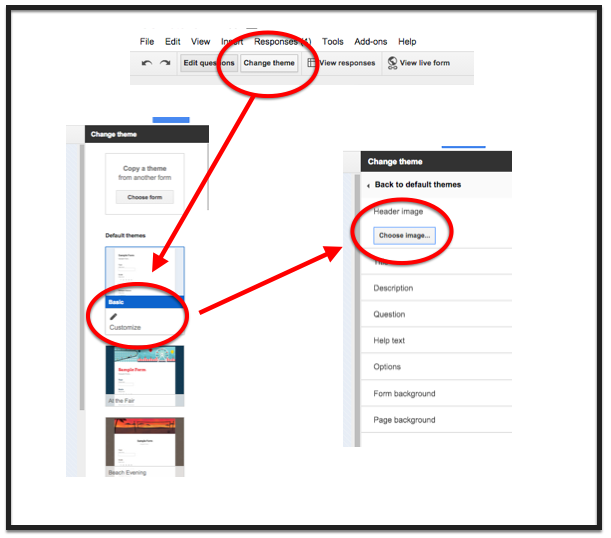
You can add your banner by going into the "Change Theme" button. Then looking at the theme list and noticing you can now customize themes. Click "customize". Then open the "Header Image" area and click "Choose Image". You can then upload your own banner.
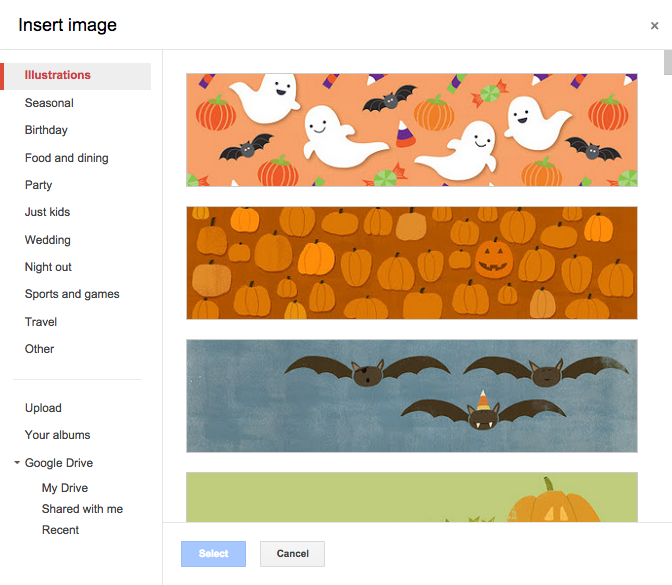
You may also notice that there are a lot of new banner choices that Google has provided. They are even arranged in topics. Some cool seasonal ones are available for your Form use.
These upgrades should make data collection fun and interesting. Give them a try!
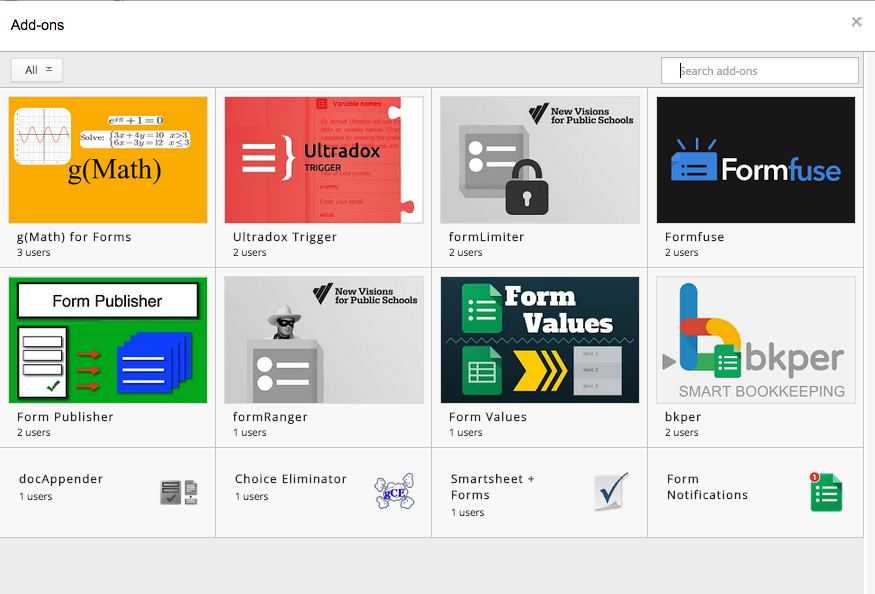
Google recently added "Add-ons" as a feature of Google Forms. There are some great options to check out. Here is a picture of what is currently available. Check them out.
Choice of Google Form Add-ons
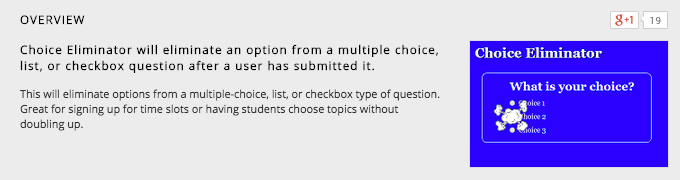
One that I am really happy to see is "Choice Eliminator". It takes choices out of a list of multiple-choice, checkbox, or list entries. That way if one submitter selects an option, it is no longer available to people who have not taken the Form yet. I see this as an outstanding option for people that schedule appointments. The choices disappear so you don't double-book. Here is a website with tutorial of how to use Choice Eliminator - click here.
Create your Form. Go to the Add-ons store in the Add-ons menu and select the Choice Eliminator and try it out. This will be awesome for teachers scheduling conferences. Too bad it didn't come out a month ago.
Google has been putting in some very functional upgrades lately. If you are a Google Forms user, you've probably noticed quite a few. I really like Google Forms and think teachers will love it. I noticed a few new changes on the Send Forms button information lately.
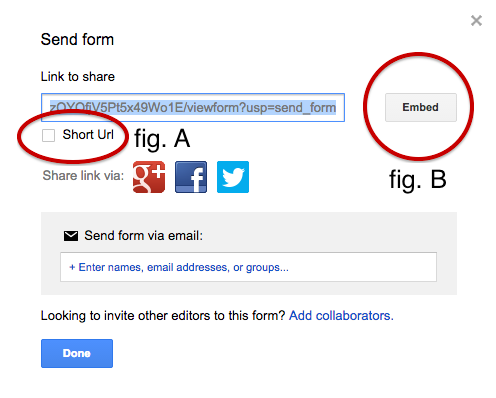
I noticed that Google now provides a URL shortener on the Send Form window (fig. A). It automatically will shorten those extremely long URLs to one with the "goo.gl" address. This is great for people that are sharing the link without having to go somewhere else to find it - like posting your link on a website or email. Great way to get a group to use their own devices to take a survey or answer some questions. How about having students use their smartphones - YEA!
Also, Google has added a button that will give you the embed code (fig. B). This is awesome, so you can embed the survey right on your webpage. That way, the user doesn't have to leave the page they are on to go take a Form.
Besides the changes, you can still post your link on Google+, Twitter, or Facebook, or even email the people you want to take the Form.
Google Forms are an outstanding way to collect information from people and organize it in an easy way to analyze. Give them a try.
A couple of new features have shown up in Google Forms in the Google Apps for Education domains. Form creators will notice that two new buttons show up in the top selection of settings.
First, there is a new "Only allow one response per person" box. This box will allow the survey to only collect one response per "signed-in" user. Since all of the students have accounts, a "one vote" restriction can be activated. This is great so that the responders don't "stuff the ballot box." This would be great for classroom voting?
Second, there is a "Shuffle question order" box. This box will shuffle the questions on each page of the form. This might be helpful when creating online assessments. You might also consider putting all of the identifying questions on a page, then putting the questions of the form on a second page or set of pages. That way, the identifying questions stay together and the rest of the questions can "jumble up."
It would be nice if you could create the identifying questions and fix their location - but Google will probably figure that out quickly.
Teachers are always looking for a way to determine if students are understanding the material. Whether it's group work or direct instruction.
Here is a good, quick way to use Google Forms to assess the "temperature" of the understanding.
I would suggest creating some generic Google Forms. You can save them and use them frequently, by clearing out the response data and using them over and over. Below, I have shared two generic Google Forms that I use to assess my audiences.
I have used these forms to gather information, either in multiple-choice format or short-answer text format. I have used a bit.ly shortener and QR Code to make the Forms accessible to the students. They can use any device to submit responses - no need for those expensive clickers. The actual questions live on the presentation of the day or written on the board in the room.
I also included an options identifier box, so if I needed to survey them more than once, they could include the identifier. They could use a 1 for the first question, 2 for the second, and so on, so the data could be sorted or filtered. It could also be used for the student's name, if results were to be retained. I could then filter my data in the spreadsheet for the results of the survey.
One of the best features of Google Forms is that the graphs of the data are available immediately. You can stop and analyze it right away. Having a link to that spreadsheet ready, will make data analysis easy, quick, and very informative.
Create yourself a couple generic Google Forms and gather some quick information from your students.
I got the opportunity to spend the afternoon at the Central Ohio OEA/NEA Leadership Conference. We spent a couple of hours talking about Google Forms and how you could use Google Forms to help with Formative Assessment. Forms makes it very easy to collect, organize, summarize and share data. I shared some examples and we discussed some ideas with participants.
Here is my presentation. It shares some steps to create Forms, as well as some ideas on how to share the data. A couple of things that I use with Forms are Flubaroo, a script to grade assessments collected in a spreadsheet, and Wordle or Tagxedo, word cloud generators.
I am always happy to share what I know, but seem to learn a few things new each time I work with a group. Google Apps are so powerful and helpful that teachers seem to always find new ways to use them.