Showing posts with label google. Show all posts

Monday, May 18, 2020

Screen Recording on your Chromebook

Hi all,

It's been a while since I posted, but I wanted you all to know about some websites that are awesome for creating videos and capturing you talking, or you talking over your screen.  Two really great products are available to you and easy to use, edit, and share.

Let's start with Screencastify.  Screencastify.com will allow you to record your screen, or part of your screen and also put your video face as an overlay.  This is great from providing voice-over to a presentation or document and connect with your audience.  The video will save into your Google Drive and be accessible anytime.  You'll be able to share the video, or download the video to upload other places.

Screencastify.com icon

Screencastify has a Chrome extension that allows you to access it with just one click.


image of extension for Screencastify


Screencastify also has a pretty nice editor, so you can trim videos, to get them just right.  Editing can be done from the editor after you record.

image of the link to open in editor


You can share your videos to many locations.  You can place it directly in Google Classroom, or even download for later.

menu for sharing Screencastify video

But, one of Screencastify.com's restrictions on the free version is that it restricts you to 5 minutes of video.  It is a nice product and easy to use, but 5 minutes means you have to record in parts, or find another product...

The other product you might want to explore is Loom.com.

loom.com icon


Loom provides educators with unlimited recording.  Loom also provides a Chrome extension.  When you go to loom.com you need to create an account using your school email address.  Once you have an account built with Loom, you need to get an upgrade.  Go to this link and request an upgrade, and they are giving educators one for free.  Click on the blue button and get your account verified.

Get your account verified here.

Loom videos are stored on their website in your account.  You can edit your videos on the website, or you can share with the link.  You can also download the video to use somewhere else.  The nice thing about Loom is that it allows you more than 5 minutes.  You can make them public or control by requiring the link.

menu for sharing video

So, as you start to think about teaching with video lessons, whether is is online teaching or blended opportunities, you might want to consider one of these two options.  Both of them are Google friendly and easy for teachers and students to use.

Sunday, April 2, 2017

Google Adds Capitalization Formatting

Google recently added a new formatting tool into Docs.  You can now change the format of the text in your document.  You can change to "all caps", "all lower case", and "Title Case."  This is a nice new feature.  It is in the Format menu.  Check it out.


Wednesday, April 22, 2015

Two New Features in Google Classroom

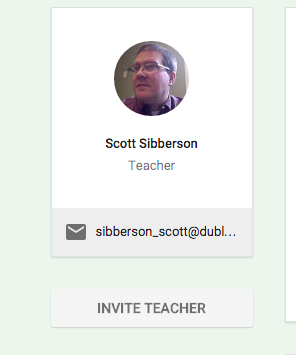
How about Google?  They definitely listen to suggestions.  They have made two really nice improvements.  First, they have added the ability to have multiple teachers in a Google Classroom.  See my previous post about getting started with Google Classroom, if you want to get going.  Now you can invite another teacher to help out.  This is great.  That teacher can do everything in the class, except delete the class.  The teacher is invited through the "About" section of the course.


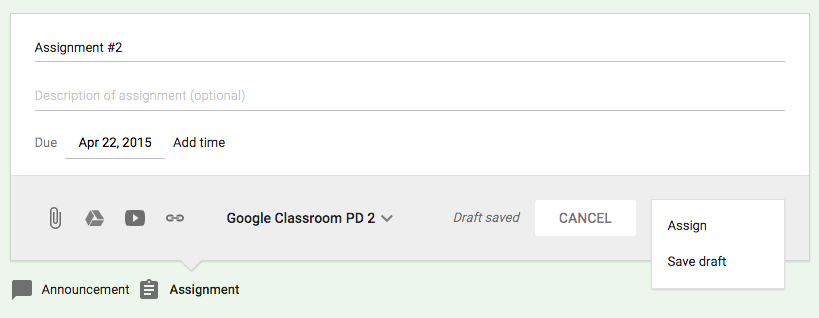
The other new feature is the ability to create announcements and assignments and save them for later.  You can create the assignment without the students seeing it.  Then, when you want them to have the assignment, you make it active.  This is an awesome feature for teachers who like to work ahead, without the students knowing what is coming.


I really give it up to Google for listening to the suggestions teachers have made.  Give Google Classroom a try, it will really help your sharing of documents with your students.

Wednesday, October 8, 2014

New Google Share Window

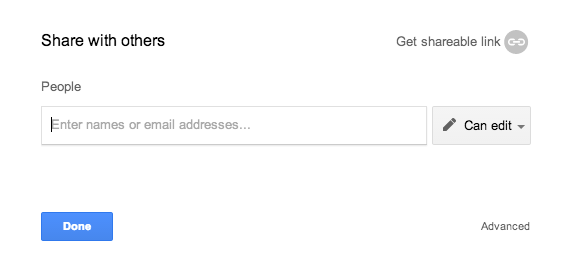
Google has changed it's share window for users.  When you click your familiar blue Share button, you'll see something new.


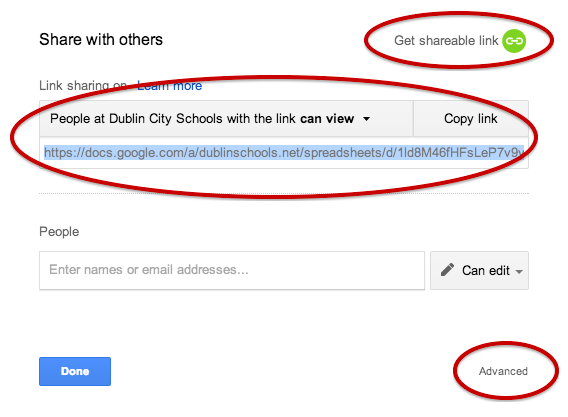
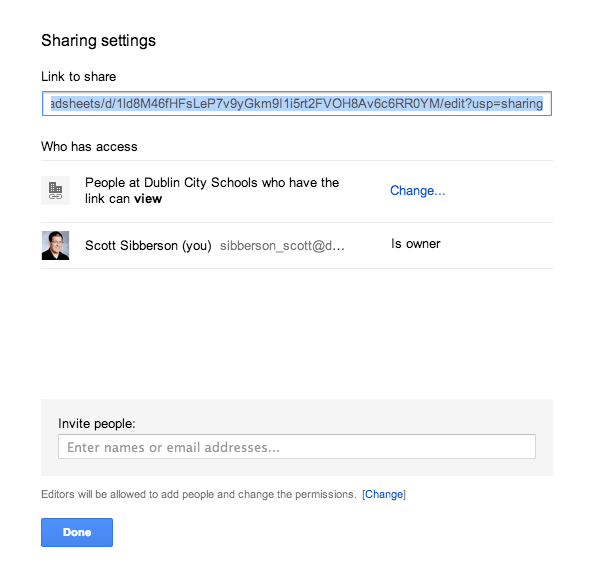
This makes it very easy to share with other people, but there are a few new features you should be aware of.  First, if you want to change your visibility settings, click the "Get sharable link" at the top-right corner of the window (see below).  This will allow you to change the Global access settings of your document.


If you want to see the old format of sharing with People, click the Advanced link in the bottom-right corner of the page (see above).  It will open the page to the more traditional sharing window.


I think this streamlined share window will become very easy to use.  As with most Google changes, it is different and will take some getting used to.  I hope I get used to it quickly.

Wednesday, August 6, 2014

Google Classroom is Coming Soon

Got a letter from Google today stating that Google Classroom is going live the week of August 11th.  I can't wait to see what teachers can do with it.

Below are some preliminary finding about Google Classroom.


Saturday, June 21, 2014

My Google Classroom Thoughts

Over the last couple of days, I've been fortunate to be able to test drive the future release of Google Classroom.  You've seen some advertisements - click here - and you've seen some video reviews - click here.  I thought I would share my initial thought with you.

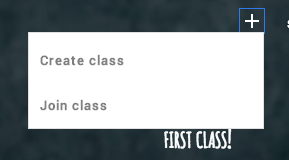
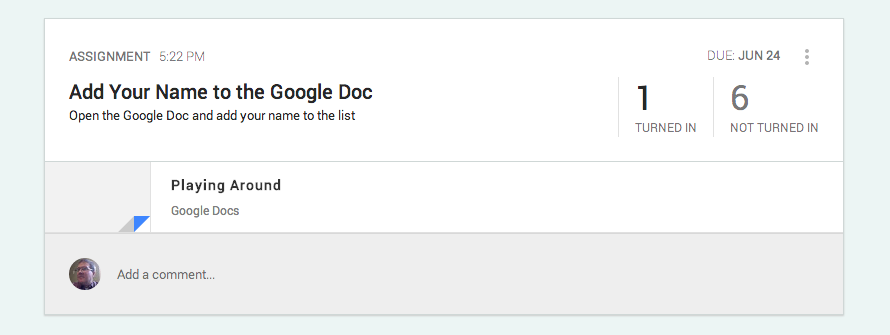
Google Classroom seems to be very intuitive in it's design and ease of navigation.  It is very easy for a teacher to create a class.  One suggestion I would have is that the teacher name each course uniquely.  If you teach multiple sections of Algebra II, you might consider combining all sections into one course or naming your courses Alg II-1, Alg II-2, and so on.  The section number you place in the name of the course does not get used in the folder creation, just the name.  Here is a picture of how easy it is for teachers or students to add a course.  When a teacher creates a course, it is assigned a course number so students can join using the course number.


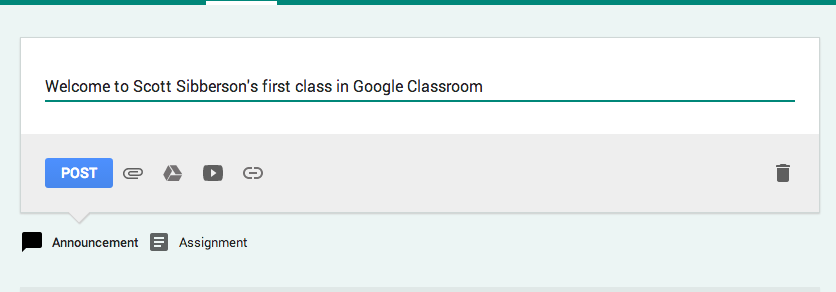
Once the students are in the course the teacher has the task of posting announcements or assignments.  This has been made quite easy.  The teacher click a selections, adds the information, and posts.  The teacher can attach files, add materials from their own Google Drive, add videos from YouTube, or add links to other websites.  See below.


When an assignment is created, Google creates a folder in the teacher's drive (an in the student) for each assignment.  The teacher's drive has a new classroom folder and inside it, a new folder for each class, and inside it, a folder for each assignment.  This helps with the organization of the teacher's documents being turned in and distributed.  Google names the folders with the course name, so pay attention to what the name of you course is - name wisely.

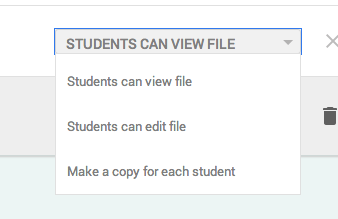
As assignments are created, the teacher will have choices as to how to give visibility of the materials. If the teacher wants each student to have their own, they can distribute copies to each student, or they can make things viewable or editable.  Google is great about ease of choice.  It is a pull-down menu right where the materials are chosen.


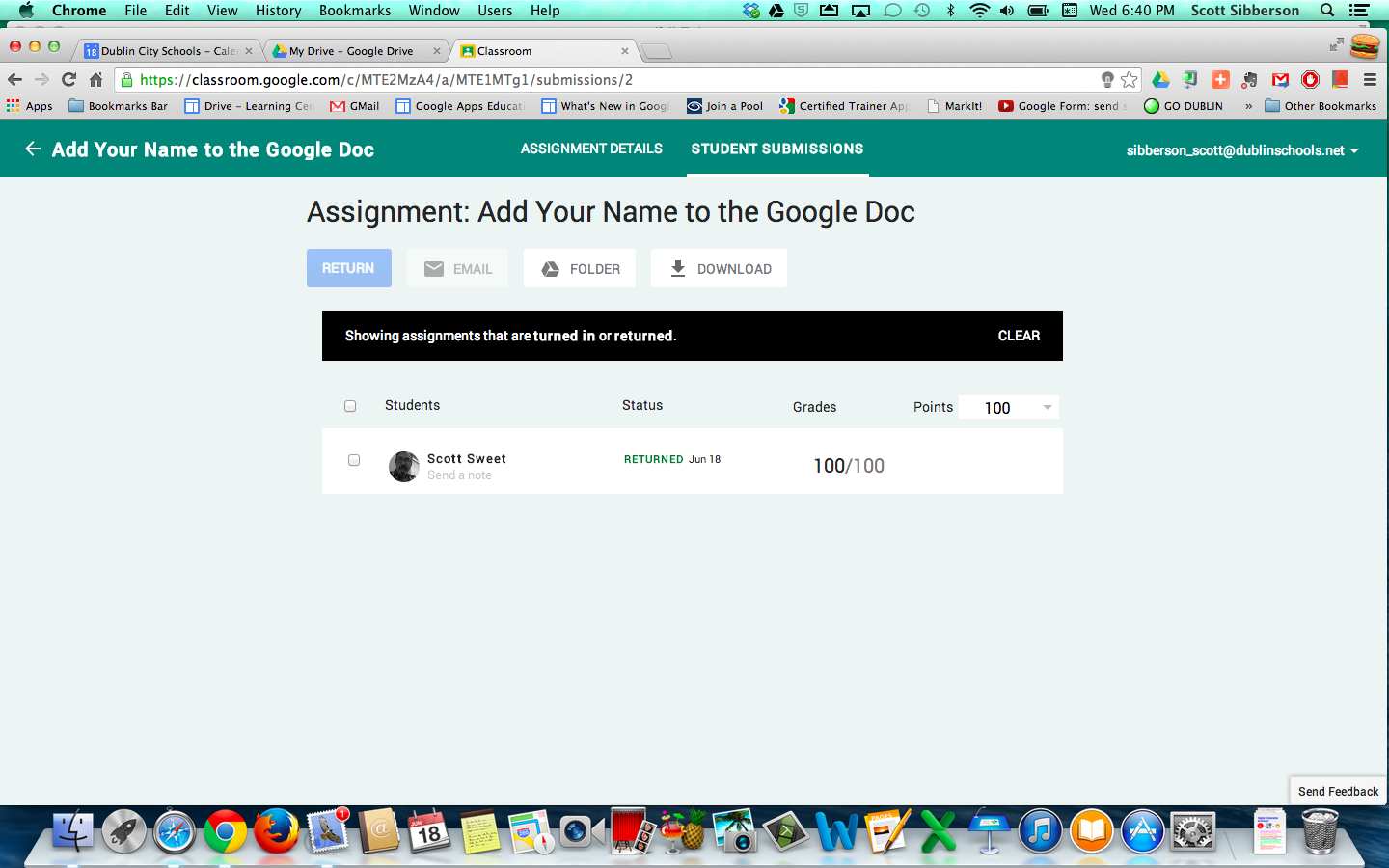
When the students do their work, they can easily submit to the teacher.  The teacher then has a an update on their class timeline, with how many have completed and how many have not, as well as, having a sheet with a list of students and their status.  This is where the teacher can add grades, comments, and email the students directly from a class roster.


There are a couple of features I'd like to see, but for organization and distribution, Google Classroom seems to be a good starting place for Google.  It is not a full LMS, it is just an straightforward way for teachers to work with students.  It is not a grade book, your grades must be moved to your current grading program.  My guess is that Google will add features and this project will grow into quite a nice, easy, and functional way for teachers to utilize Google in the classroom.  

I can't wait for this to come out in the fall.  I think teachers will find it quite useful.


Thursday, May 15, 2014

Formative Assessment and Google Forms

Recently, I attended ITIP Ohio Google Summit in Sandusky, Ohio.  It was a conference of over 700 teachers and administrators from all over the state, and beyond.  It was a two-day conference focusing on Google Apps for Education and how it can be utilized in schools.

I was fortunate enough to be able to share on the topic of formative assessment and how Google Forms can be used to collect, analyze, and share the information with staff and students.  It's always fun to share how powerful Google Forms are for teachers.  Here is my presentation.


Wednesday, May 14, 2014

ITIP Ohio Summit Roundup

ITIP Ohio Summit took place this past Monday and Tuesday, in Sandusky, Ohio at the Kalahari Resort and Convention Center.  The focus of the Summit was Google Apps for Education.  Many sessions were given over the two days.  The Conference was hashtagged at #ITIP14, if you'd like to go see what was said.  The programs are here.

Day 1 - Pre-Conference
Day 2 - Conference

Sessions I attended were:

The Chrome-an Empire: In the 21st Century


Dusty Miller, of WGTE Public Media, presented on the development of Chrome.  She talked about the features and benefits of Chrome.  She mentioned some great Chrome Apps and Extensions.  She also talked about some of the benefits of using Chrome with Google Drive.

Her presentation materials are here - http://tinyurl.com/l243p47

Google SLAM

Many presenters talked about cool apps:
Boomerang for GMail in Chrome - Bill Mooney - so you can schedule emails
Field Trip App for iOS and Android - Dusty Miller - adds Google Info to your current location
PearDeck - John Sowash - An interactive presentation app - "keep you audience engaged"
NearPod - Marcia Kish - An interactive presentation app - "keep you audience engaged"
Jam for Chrome - Marcia Kish - App to create music in Chrome
Chromie is Your Homie - Ryan MacRaild - cool features of Chrome - http://goo.gl/I6drnF
Calendar - Labs - Mary Ann Falk - Explored some different labs in Google Calendar
Anticipated Preview of Google Classroom - Carrie Rathsackhttp://www.google.com/edu/classroom/
Google Sheets - Anthony Luscre - Conditional spreadsheet applications

Google Apps: It's Elementary!

Shahnyn Moody-Benedict and Angela Maxwell presented on how they use Google Apps for Education in the elementary school.  They are media specialists and work with staff and students to use Google Apps to accomplish many tasks.

Their presentation is linked here - Google Apps: It's Elementary! Presentation and Survey


50+ Uses of Google Forms & How to Create Them


Lisa Johnson-Bowers and Darlene Adamson, from Mentor, presented on many ways to use Google Forms.  They provided a lot of examples of how you could use forms and even demonstrated how to create a form.  One big feature I liked was the demonstration of how to create a "conditional" survey.

Their presentation is linked here - http://goo.gl/A7VpHj


Making GMail Safe for Schools


Eric Curts, Tech Integration Specialist for SPARCC, presented how Admins can write scripts and rules to allow mail to flow in and out of your organization.  He shared many features to help be specific about which members can send and receive email from different groups.

His presentation materials are here - http://www.appsusergroup.org/presentations/email-security

These two days have been outstanding.

If you are a GAFE user, you should make a point to attend next year.


Tuesday, May 6, 2014

Shorten Your URLs with "goo.gl"

Have you ever needed to shorten an extra-long URL?  I do all the time.  Now that I am using Google Forms frequently, I am always needing to shorten them.  I have tried many and there are some benefits to others, but I have started to use "goo.gl" as my go-to shortener.

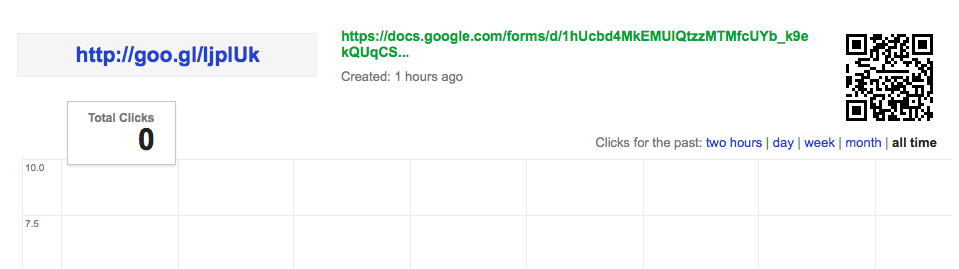
I love the fact that is keeps track of all of the URLs that I shorten.  I also love the fact that it quickly, and automatically, creates a QR Code.  Goo.gl makes it very easy for me to create a form, shorten the URL, and collect data from people.  Here is a screen shot of the details for a recently shortened address.


Here is a quick tutorial, demonstrating how "goo.gl" easily shortens the address and provides your information.  Check it out and give it a try.


Friday, March 14, 2014

Google Apps Training Almost Finished

We are half-way through our third and final cycle of Google Apps for Education initial training for teachers.  We have already trained in Drive basics and Calendar basics, and are now finishing up GMail basics.  It is an exciting time for our staff (a little nerve-racking, as well).  Teachers and staff are starting to see some of the real power in Google, and we haven't even spent much time looking at the advanced applications of Apps.  The future is bright.

Our mail changeover date is less than 1 month away.  We are in the process of creating district-wide calendars, resources, and groups.  The migration seems slow, but deliberate.  I think that because we are so deliberate, we are finding that the staff appreciates the efforts we are putting forth in training them to use the different pieces.  We introduce them to an aspect of Google Apps, and then give them time to work with that.  Then, we come back with another App, etc.

We have also provided many ways for our staff to learn.  We have done in-building, face-to-face trainings, created a packet of training tutorials, and created video tutorials that they can access when they have time.  By providing the resources in many formats, we give them different ways to process the information, as well as resources to go back and reference if more info is needed.  We have also put everything onto a wiki that is accessible from anywhere - Google Training Wiki.  Here is a video from our third training component - GMail Basics.


This has been an interesting process, and am really looking forward to being able to see it go "live".  I am really excited to see how our teachers start to utilize the power of Google Apps for Education, both with each other and with their students.


Monday, February 3, 2014

Quick Introduction to Google Apps for Education

Our district has recently decided to go Google.  I couldn't be more happy and excited.  Google Apps for Education will allow teachers (and students - soon) to be able to collaborate, share, and easily access their information.  Gmail, Calendars, Drive, Groups - easily shared with each other and easily accessed on any device with web access.  How great is that?  I think it will make a huge difference in how we do our day-to-day work.

Here is a quick commercial about Google Apps for Education for those that aren't all "Googly", like me.


Sunday, February 2, 2014

Great iPad Apps for the Classroom - Part II

Here is Part II of a list of iPad Apps that my colleagues and I recommend for classroom iPads.  These are excellent Apps for creating and sharing.  Give them a try.  They are very easy to use and figure out.  We also suggest these Apps to parents for their kids.  We are not into skill and drill, we prefer making things.  These are a good place to start.  Many of them work on an iPhone or iPod, as well.


App Icon
Description     and  single-copy price/volume price - 20 or more
Baiboard is an ipad app that allows you to create, share and collaborate on your education content.  It allows for zoomable multi-page whiteboard, collaborative annotation on PDF docs, and screen sharing from iPad to web browser.  Free

Qrafter (Crafter) is a two-dimensional barcode scanner for iPhone, iPad and iPod Touch. Its main purpose is to scan and parse the contents of QR Codes.  Free

Feltz allows you to create pictures from over 550 felt graphics to play with. So if you want to make a farm, a monster flying a plane, dinosaurs and frogs on skateboards or a simple flower, your imagination is the limit.  $.99/$.49

Comic Life, the award winning photo comic creation software, is the funnest, easiest and fastest way ever to create photo comics on a mobile device. Your comics come to life with our integrated reader on brilliant iOS displays. Easily go from taking photos to creating full comics all on one device with full page templates and panel layouts.  $4.99/$2.49
Hopscotch teaches kids to code using simple, intuitive building blocks. Kids can create games, animations and other programs in this colorful, interactive environment.  Free

Daisy the Dinosaur! is a free, fun app that has an easy drag and drop interface that kids of all ages can use to animate Daisy to dance across the screen. Kids will intuitively grasp the basics of objects, sequencing, loops and events by solving this app's challenges.  Free

Skitch is an app that will help you show how you feel instead of writing about it. Snap it, mark it, and send it on. Capture a photo and make a friend laugh with you or inspire a student by labeling the insides of a robot. Impress your boss with a snap of the white board with her comments right after the meeting finishes.  Free

Drawing Box Free is the most suitable app to learn and practice drawing and painting. With responsive smooth pencil and brush strokes, graphical and intuitive interface, you can use it to make a quick sketch or a detailed study on the go.   Free

Voice Record Pro is a professional voice recorder. It allows you to record voice memos and on-site sounds at unlimited length with configurable quality.  Recorded voices are in standard AAC/MP4/M4A format. They can be converted to MP3 and can be saved in various places.  Free

Light-bot is a programming puzzle game: a puzzle game that uses game mechanics that are firmly rooted in programming concepts.  Light-bot LITE lets players gain a practical understanding of basic concepts like writing instruction sequences and procedures, just by guiding a robot with commands to light up tiles and solve levels.  Free

Popplet is a platform for your ideas. Popplet's super simple interface allows you to move at the speed of your thoughts. With Popplet you can capture your ideas and sort them visually in realtime. Quickly and easily!  Free

My WebDav can turn your iPhone, ipad, ipod into WebDav client, download files from WebDav server and upload files into WebDav server.  Free

Book Creator is the simple way to create your own beautiful iBooks, right on the iPad. Read them in iBooks, send them to your friends, or submit them to the iBookstore.  Ideal for children’s picture books, photo books, art books, cook books, manuals, textbooks, and the list goes on.  $4.99/$2.49
Google Drive is one safe place for all your stuff. Upload photos, videos, documents, and other files that are important to you, then access what you need wherever you go, on any device.   Free

Friday, January 31, 2014

Great iPad Apps for the Classroom - Part I

Here is Part I of a list of iPad Apps that my colleagues and I recommend for classroom iPads.  These are excellent Apps for creating and sharing.  Give them a try.  They are very easy to use and figure out.  We also suggest these Apps to parents for their kids.  We are not into skill and drill, we prefer making things.  These are a good place to start.  Many of them work on an iPhone or iPod, as well.


App Icon
Description     and  single-copy price/volume price - 20 or more
Explain Everything is an easy-to-use design, screencasting, and interactive whiteboard tool that lets you annotate, animate, narrate, import, and export almost anything to and from almost anywhere.  $2.99/$1.49
Pages is the most beautiful word processor you’ve ever seen on a mobile device. This powerful word processor helps you create gorgeous reports, resumes, and documents in minutes. Pages has been designed exclusively for the iPad, iPhone, and iPod touch with support for Multi-Touch gestures and Smart Zoom.  Free on new iPads

Keynote is the most powerful presentation app ever designed for a mobile device. Built from the ground up for iPad, iPhone, and iPod touch, it makes creating a world-class presentation — complete with animated charts and transitions — as simple as touching and tapping.  Free on new iPads

Numbers is the most innovative spreadsheet app ever designed for a mobile device. Created exclusively for iPad, iPhone, and iPod touch, Numbers includes support for Multi-Touch gestures and Smart Zoom so you can create powerful spreadsheets using just your fingers.  Free on new iPads

iMovie puts everything you need to tell your story at your fingertips, with a beautifully streamlined interface and Multi-Touch gestures that let you enjoy your videos like never before. Browse your video library, quickly share favorite moments, and create beautiful HD movies and Hollywood-style trailers. And with iCloud, you can enjoy them in iMovie Theater on all your devices.  Free on new iPads
GarageBand turns your iPad, iPhone, and iPod touch into a collection of Touch Instruments and a full-featured recording studio — so you can make music anywhere you go. Use Multi-Touch gestures to play a piano, organ, guitar, and drums. They sound and play like their counterparts, but let you do things you could never do on a real instrument.  Free on new iPads
iBooks is an amazing way to download and read books. iBooks includes the iBooks Store, where you can download the latest bestselling books or your favorite classics – day or night. Browse your library on a beautiful bookshelf, tap a book to open it, flip through pages with a swipe or a tap, and bookmark or add notes to your favorite passages.  Free on new iPads
Office² HD, the most intuitive and straightforward office document editor available on the iPad, makes it easy to open, view, create and edit Word (DOC & DOCX), Excel (XLS & XLSX), and PowerPoint (PPT & PPTX) files right from your iPad!  $7.99/$3.99

Pixie is the award winning authoring tool students can use to share ideas, imagination, and understanding through a combination of text, original artwork, voice narration, and images. Students can use Pixie’s paint tools, text options, clip art, and voice recording to develop storybooks, curriculum projects, videos, and so much more.  $9.99/$4.99

Storybook Maker is an amazing app for children to express their creativity. With Storybook Maker you can make a book and share it with friends! The app comes equipped with all the tools needed to create incredible and exciting stories!  $.99/$.49

iMotion HD is an intuitive and powerful time-lapse and stop-motion app for iOS.  Take pictures, edit your movie and export HD 1080p & 720p videos to your device or directly to Youtube.  Free

GoodNotes lets you take handwritten notes, sketch diagrams, mark-up PDFs and organize them on a beautiful bookshelf. Turn pages with a swipe, highlight or add notes to any page, and share your notes with anyone. GoodNotes will automatically save your notes and has full backup function to prevent data loss.  $5.99/$2.99

Notability is the best-selling note-taking app on iPad, iPhone and iPod touch. Notability is so powerful that it will transform how you work: sketch ideas, annotate documents, sign contracts, complete worksheets, keep a journal, jot travel notes, teach a class, make a presentation and much more. With iCloud support, your notes stay up to date on all your devices!  $2.99/$1.49

Thursday, January 30, 2014

OETC 2014

Over the last few frigid days, I have been fortunate to attend the Ohio Educational Technology Conference.  I have been attending this conference every year for the past 10 or so years.  This year, I had the opportunity to hear some excellent educators.

Monday's Keynote speaker was Kevin Honeycutt.  His topic, "Inspirational Teachers Change Minds & Lives, " was a great way to kick off the conference.  He was outstanding.  He also spoke later in the day.  I saw him speak about "Teaching Wired Learners."  He shared great insights from being a parent and teacher of kids that are connected.  His website - KevinHoneycutt.org - contains many free resources and access to his presentations.  He is more than willing to share his knowledge and time with people that want to help.  Kevin was outstanding.

Wednesday's Keynote speaker was Alan November.  His topic, "The End of Technology Planning, " walked through his experiences with using technology with students.  Alan has been to the Ohio conference 3 times now.  He is a leader in educational technology and shares his experiences with his readers.  He shared some outstanding resources and explained why they were so powerful.  His number one power app for iPads and computers was Wolfram Alpha.  It is extremely helpful to math and science students in the way that it solves problems step-by-step.

This is the third time I've heard Alan speak.  If you would like to see more of Alan November, you can check out a summer conference he runs called BLC - Building Learning Communities.  I attended that conference in 2010 and 2011.  It is an outstanding conference.  That conference helped push me into blogging.

Some other good informational sessions -

Teach Like a Hacker - by Ryan Collins - He talked about tips and tricks to help teachers and students be more efficient.  Hacking is not necessarily a bad thing.

App Smackdown - iOS - Here is a list of shared Apps.

Effective Use of Google Forms - by Andreas Johansson.  He shared ways  to use Google Forms to collect data easily.  Here is information from his presentation.  Here is his website.

One of the best parts of being a the conference, was being able to touch base with outstanding technology educators.  Keeping face-to-face contact is nice, since many of us keep contact through Twitter, Facebook, Google Plus, and other social networks.

Next year, come to Columbus and join in the fun.  The dates are Feb. 10-12, 2015.