Showing posts with label Google Apps for Ed. Show all posts

Thursday, April 23, 2015

Grading Google Assessments with Flubaroo

Flubaroo is a Google Sheets Add-on that can grade Google Form submissions.  It has the ability to easily grade multiple-choice questions, but can also grade free response, as well.  Flubaroo also has some other features that are awesome for teachers.  It can auto-grade, and send results to the student as soon as the student hits submit.  Here is a link to the Flubaroo website, if you'd like to see their description and materials.

Flubaroo also has some interesting grading features that you may want to be aware of.  They are described here and demonstrated in the video.

1.  In order for Flubaroo to grade answers and be case-sensitive you need to fill out the key with a %cs in front of the response.  If you need a capital C in Columbus, answer the key with %cs Columbus.  If there is no %cs, Flubaroo doesn't care about capitalization.

2.  If you would like to allow multiple correct responses, you'll need to fill out the key with a %or in between possible solutions, like red %or white %or blue, when asking for a color in the USA flag.

3.  If you would like an answer to fall within a certain range, like between 3 and 4, you'll need to use a %to between the numbers.  If the key shows 3 %to 4, it will allow a correct response for anything from 3 to 4.

These are some nice possibilities that Flubaroo allows for grading.  Below is a tutorial of how to use Flubaroo.  Give it a look!


Wednesday, March 25, 2015

Starting a Google Hangout

I frequently get asked about how to create a Google Hangout.  Google Hangouts are a great way to video chat with other Google users.  They are free and easy to setup and use.  There are 3 ways to easily start a Google Hangout.

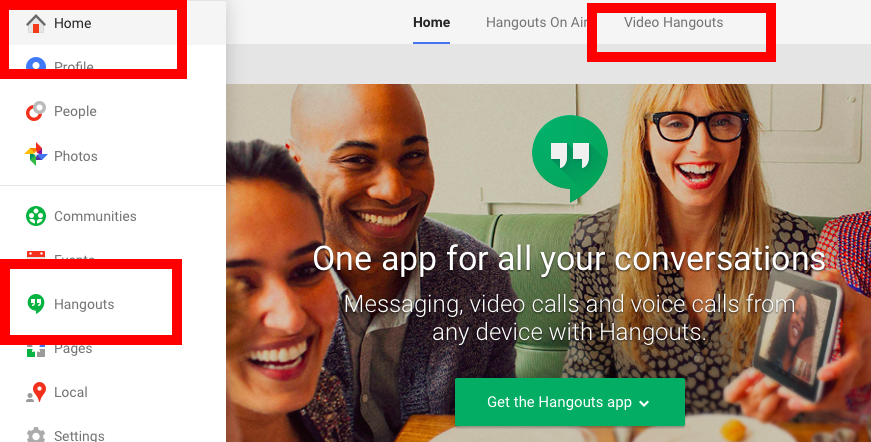
1.  Go into your Google Plus account   "+ You" on any Google Page  
     Find the "Home" menu on the top-left side of the page
     Choose Hangouts
     Select Video Hangout


2.  Go to your GMail page
     Find a contact on the bottom-left corner
     Hover over that contact
     Click the camera button to start Hangout


3.  Go to your Calendar page
     Create a new event
     Include video call
     Invite other users
     The event will contain a link to join video Call.

Here is a video demonstrating all of these methods.


Friday, October 24, 2014

New Google Form Add-ons - Choice Eliminator

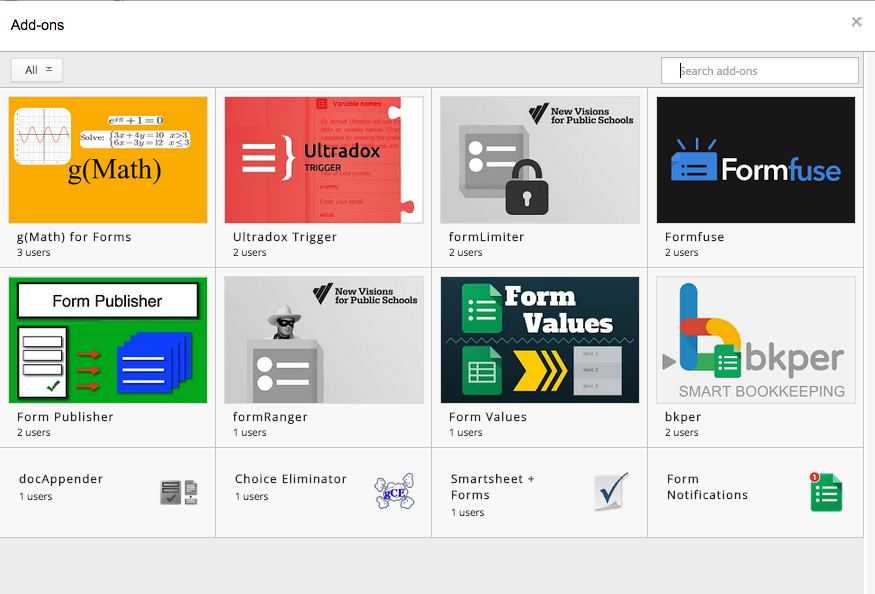
Google recently added "Add-ons" as a feature of Google Forms.  There are some great options to check out.  Here is a picture of what is currently available.  Check them out.

Choice of Google Form Add-ons


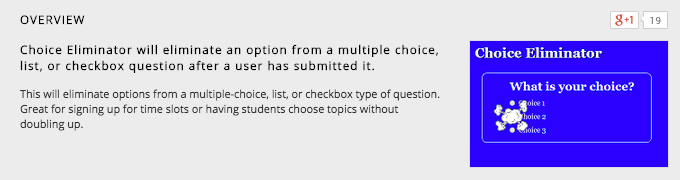
One that I am really happy to see is "Choice Eliminator".  It takes choices out of a list of multiple-choice, checkbox, or list entries.  That way if one submitter selects an option, it is no longer available to people who have not taken the Form yet.  I see this as an outstanding option for people that schedule appointments.  The choices disappear so you don't double-book.  Here is a website with tutorial of how to use Choice Eliminator - click here.


Create your Form.  Go to the Add-ons store in the Add-ons menu and select the Choice Eliminator and try it out.  This will be awesome for teachers scheduling conferences.  Too bad it didn't come out a month ago.

Thursday, October 2, 2014

Generic Google Forms

Teachers are always looking for a way to determine if students are understanding the material. Whether it's group work or direct instruction.

 Here is a good, quick way to use Google Forms to assess the "temperature" of the understanding. I would suggest creating some generic Google Forms. You can save them and use them frequently, by clearing out the response data and using them over and over. Below, I have shared two generic Google Forms that I use to assess my audiences.


I have used these forms to gather information, either in multiple-choice format or short-answer text format.  I have used a bit.ly shortener and QR Code to make the Forms accessible to the students.  They can use any device to submit responses - no need for those expensive clickers.  The actual questions live on the presentation of the day or written on the board in the room.

I also included an options identifier box, so if I needed to survey them more than once, they could include the identifier.  They could use a 1 for the first question, 2 for the second, and so on, so the data could be sorted or filtered.   It could also be used for the student's name, if results were to be retained.  I could then filter my data in the spreadsheet for the results of the survey.

One of the best features of Google Forms is that the graphs of the data are available immediately.  You can stop and analyze it right away.  Having a link to that spreadsheet ready, will make data analysis easy, quick, and very informative.

Create yourself a couple generic Google Forms and gather some quick information from your students.


Wednesday, August 6, 2014

Google Classroom is Coming Soon

Got a letter from Google today stating that Google Classroom is going live the week of August 11th.  I can't wait to see what teachers can do with it.

Below are some preliminary finding about Google Classroom.


Friday, March 14, 2014

Google Apps Training Almost Finished

We are half-way through our third and final cycle of Google Apps for Education initial training for teachers.  We have already trained in Drive basics and Calendar basics, and are now finishing up GMail basics.  It is an exciting time for our staff (a little nerve-racking, as well).  Teachers and staff are starting to see some of the real power in Google, and we haven't even spent much time looking at the advanced applications of Apps.  The future is bright.

Our mail changeover date is less than 1 month away.  We are in the process of creating district-wide calendars, resources, and groups.  The migration seems slow, but deliberate.  I think that because we are so deliberate, we are finding that the staff appreciates the efforts we are putting forth in training them to use the different pieces.  We introduce them to an aspect of Google Apps, and then give them time to work with that.  Then, we come back with another App, etc.

We have also provided many ways for our staff to learn.  We have done in-building, face-to-face trainings, created a packet of training tutorials, and created video tutorials that they can access when they have time.  By providing the resources in many formats, we give them different ways to process the information, as well as resources to go back and reference if more info is needed.  We have also put everything onto a wiki that is accessible from anywhere - Google Training Wiki.  Here is a video from our third training component - GMail Basics.


This has been an interesting process, and am really looking forward to being able to see it go "live".  I am really excited to see how our teachers start to utilize the power of Google Apps for Education, both with each other and with their students.


Sunday, March 9, 2014

Google Forms at Central OEA/NEA Leadership Conference

I got the opportunity to spend the afternoon at the Central Ohio OEA/NEA Leadership Conference.  We spent a couple of hours talking about Google Forms and how you could use Google Forms to help with Formative Assessment.  Forms makes it very easy to collect, organize, summarize and share data.  I shared some examples and we discussed some ideas with participants.

Here is my presentation.  It shares some steps to create Forms, as well as some ideas on how to share the data.  A couple of things that I use with Forms are Flubaroo, a script to grade assessments collected in a spreadsheet, and Wordle or Tagxedo, word cloud generators.

I am always happy to share what I know, but seem to learn a few things new each time I work with a group.  Google Apps are so powerful and helpful that teachers seem to always find new ways to use them.

Keep Googling!


Tuesday, February 11, 2014

Introduction to Google Apps for Education

Today, we started training buildings.  Google Apps for Education for the Dublin City Schools.  How exciting for teachers and students.  Teachers are getting their accounts, learning how to log in, seeing what will be available and being introduced to Google Documents.  What a huge spectrum of learners.  Some are users of Google Apps and others have never logged into a Google Account.

They are just floored when they see that you can type in a document at the same time as another user. Wow.  You can see the teachers thinking of ways to use this in the classroom.  It is going to be outstanding to see this roll out.  Hopefully, they will not try to jump in too quickly.  Apps accounts are up and running, but mail is not flowing in until after Spring Break.

Here are a couple videos that teachers can watch if they want to see more info, or they could not make it to their building's session #1 training.

Intro to Google Apps


Intro to Google Documents and Basic Sharing

Monday, February 3, 2014

Quick Introduction to Google Apps for Education

Our district has recently decided to go Google.  I couldn't be more happy and excited.  Google Apps for Education will allow teachers (and students - soon) to be able to collaborate, share, and easily access their information.  Gmail, Calendars, Drive, Groups - easily shared with each other and easily accessed on any device with web access.  How great is that?  I think it will make a huge difference in how we do our day-to-day work.

Here is a quick commercial about Google Apps for Education for those that aren't all "Googly", like me.