Showing posts with label teachers. Show all posts
Showing posts with label teachers. Show all posts
Friday, December 12, 2014
RowCall Add-on for Google Sheets
Teachers frequently collect a lot of data with Google Forms. The data then gets manipulated in a Google Sheet. I hear a lot of requests for the ability to look at each student's data by itself. This Add-on, RowCall, will automatically create a tab for each different entry in a column. This means that each student would have their own tab in the spreadsheet, as well as being part of the whole grouping of data. Check out the tutorial below.


Wednesday, October 24, 2012
Skitch for Science
In an earlier post, I mentioned a free App for the iPad called Skitch. I thought I might share a way that Skitch can be used in the classroom. Students can use a picture of an item, and label it's parts. I will use a picture of a frog that I obtained from Flickr. The picture will be loaded into the photo library on the iPad. Students will open the image in Skitch and label the known parts of the frog.
The picture below will be the Skitch markup with parts of the frog labeled.
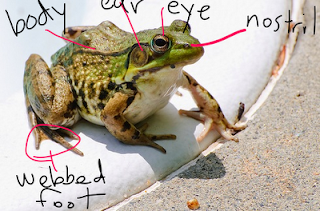
The picture below will be the Skitch markup with parts of the frog labeled.

So, very quickly, you can have a picture labeled by the students to illustrate the parts they know, or show the parts they don't. Skitch allows for easy annotation of a picture or document, as well as easy saving of the new and marked up diagram.
Another way Skitch could be used is by having your students take pictures of an experiment to document the process. They could open the pictures in Skitch to label and document the what the picture is showing. Once all of the pictures are marked up and completed, the students could use them in some other program to report out their findings - like a word processor or presentation software. Skitch would allow the student to explain the picture in detail, right on the picture.
Sunday, October 21, 2012
Online Stopwatch and Timer

Teachers are frequently looking for a way to keep track of time. Online stopwatch is a free and easy online tool that can be projected onto a screen or just utilized on your computer. Whether you want a stopwatch, or a countdown clock, this is an outstanding site to visit. It can be used in many ways,, provides multiple different formats, and because it is web-based, can be accessed on many different devices. I know teachers that have used it for timing standardized assessments, timing speeches, and for many other activities. If you want to keep track of time, this is for you. Give it a try, it is one bookmark you'll want to save. Check out the chart below for other ways this free tool can be used.

Tuesday, August 7, 2012
Dublin Leadership Academy
Today starts two days of Dublin teachers getting together to learn and prepare for the new school year. What an exciting couple of days. I am looking forward to the opportunity to share a presentation with them. Here is the presentation containing the Web 2.0 Tools that I recommend for teachers to use, professionaly and with their students.
Thursday, August 2, 2012
Hilliard OILE Conference
I have the opportunity to present at the Ohio Innovative Learning Environments Conference in Hilliard this week. I get to share Web 2.0 Tools with teachers from the area. This is my slideshare for the conference.
Tuesday, October 25, 2011
More QR Codes in Science
Our Physics teachers are using QR Codes with their students in a couple of ways that are pretty useful. First, they are using the QR Code to take the students to a "Friday Picture of the Week." This is a picture of some physics object that the students have either learned about or will learn about. Students are encouraged to submit photos that they find throughout their work.
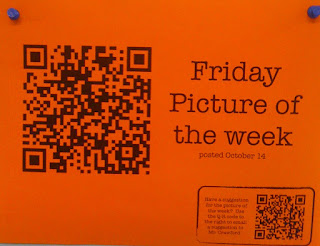
Second, the teachers use QR Codes for the students to reference online assessments using the online source, Quizstar. The students can use their phones, laptops, or other device to take these assessments. The QR Code allows the students to avoid typing in long URLs. These Quizstar formative assessments then provide the teachers with data about the students and their knowledge of the subject.

The last way that the teachers are using QR Codes is on a calendar that is on a bulletin board outside their classroom. It has QR Codes that relate to the day's activities. Some codes are for Quizstar assessments, some are for videos (that are hosted on their class webpage), and some are for pdf files that the students may need. This makes it very easy for a student to find out what happened in class on a day they were absent.
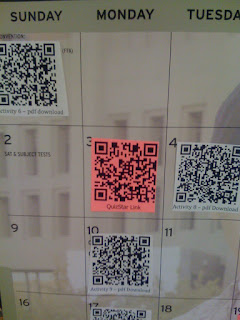
QR Codes are starting to pop up everywhere. How creative can you get? Incorporate them into your classroom.

Second, the teachers use QR Codes for the students to reference online assessments using the online source, Quizstar. The students can use their phones, laptops, or other device to take these assessments. The QR Code allows the students to avoid typing in long URLs. These Quizstar formative assessments then provide the teachers with data about the students and their knowledge of the subject.

The last way that the teachers are using QR Codes is on a calendar that is on a bulletin board outside their classroom. It has QR Codes that relate to the day's activities. Some codes are for Quizstar assessments, some are for videos (that are hosted on their class webpage), and some are for pdf files that the students may need. This makes it very easy for a student to find out what happened in class on a day they were absent.

QR Codes are starting to pop up everywhere. How creative can you get? Incorporate them into your classroom.
Tuesday, October 18, 2011
QR Code Bulletin Board
Our World Languages Department decided to incorporate QR Codes into their bulletin board. They surveyed their teachers and each submitted their favorite music videos from different countries. Then, they prepared a page on each artist (or group). So each page contains the name of the artist, the title of the song, a brief description, and a QR Code to the Youtube video of that song. Students and staff can use their QR readers to access that song. Pretty Cool. The photos below are from the whole bulletin board and one of the pages.


Thursday, September 8, 2011
Skype for Open House

Our Chinese teacher has to travel between all 3 of our high schools. Unfortunately, two of the schools had Open House on the same night, so we had a problem. She came to me and asked if we could Skype into the classroom to allow the parents to meet her and hear from her, since she would be physically unable to change buildings in the 10 minutes allotted. I thought it would be a great idea.
We were able to set up the computers and allow the Skype to occur. She was able to share part of her Keynote presentation as well as talk to the parents. I believe that the parents were extremely happy to see her talk about Chinese, since I was going to be the alternative. She left her materials with me, just in case of technical difficulties. She utilizes many different forms of technology in her class, and this was a way to directly show the parents her command of Skype.
Tuesday, August 9, 2011
10 iPad Apps Every Teacher Needs

9.99 (4.99 for schools buying at Volume Pricing)
Pages is a word-processing application. It is designed to allow the user to edit, create, and view documents. The documents can easily be shared via e-mail, or iTunes. You can add photos and graphs to your word-processing and you can also utilize some standard templates to create new documents. Pages is a necessity for the iPad user.

9.99 (4.99 for schools buying at Volume Pricing)
Keynote is a presentation application. It is designed to allow the user to edit, create, view, and share presentations. Like pages, Keynote presentations can be shared easily via e-mail or iTunes. Photos, graphs, charts, and other media can be added to your presentations. It is an outstanding application for the iPad.

9.99 (4.99 for schools buying at Volume Pricing)
Numbers is a spreadsheet application. It is designed to allow the user to edit, create, and view spreadsheets. It is easily share via e-mail and iTunes. Data entry and chart creation are nicely accessible in the iPad app, making the Numbers app quite helpful to teachers that utilize spreadsheets.

9.99 (4.99 for schools buying at Volume Pricing)
Air Display is an application that allows the iPad to take control of the users computer. The display of the iPad mirrors the display of the other computer. The user then utilizes the computers software and documents to perform tasks. Teachers with LCD projectors on their computers can get the iPad to perform like a Interactive White Board if their computer has software that allows writing. See information by Wesley Fryer with regards to that process.

Free
Dropbox is a free online storage application. It is a site that installs on iPads, iPods, iPhones, and computers so the user can store files and have access to them no matter where they are. Sign up for your free account at dropbox.com and get your friends to sign up as well. Them more people you get to sign up, the more free storage space you get.

Free
Evernote is an outstanding note-taking and idea-organizing application. It can be used on an iPad or computer with an account that syncs the information between the locations. It is easy to record audio, take photos, and write notes that can be organized into topic notebooks. Your account will even give you and email address to e-mail notes into Evernote.

Free
Google Search makes searching the internet extremely easy, by saving you keystrokes. Google Search utilizes Google's searching capabilities - like Voice Search (speak into the phone or iPad and it translates and starts the search), Google Goggles (searches using photo recognition - take a picture and it tries to find it), and it also uses your location to find information that is in your vicinity. This is an outstanding application.

Free
Dragon Dictation is a voice-to-text translator. This application records your speech and translates it into text with outstanding accuracy. The text can then be sent to others by text message, e-mail, and cut to your clipboard. Dragon Dictation also connects easily to social networks like Facebook and Twitter.

Free
Show Me is a screencasting application.

Free
Screen Chomp is a screencasting application.
Here are 10 applications that your iPad would love to have. The applications will help you be productive and efficient. As you can see, I like "Free" and feel like there is so much out there to help you do good work. Here are some. Send me your others.
Honorable Mention
Scan - A QR Code Reader
Dictionary.com - A Dictionary and Thesaurus look up.
Keynote Remote - Allows you to control your Keynote Presentations from your iPad.
Saturday, October 2, 2010
Twitter for Teachers
I used Tech Tuesday to talk with teachers about Twitter. As we talked, I found that they were concerned about using Twitter at school. As the conversations played out, people started thinking about how they might use twitter. Our initial thoughts were to get them to use Twitter for themselves and see that there are ways to connect with many people all over the world that share their common interests. Our hope is that they grow their following, connect with great people, learn and share information, and then start to think of ways to implement in the school setting. I have struggled to see where schools are using Twitter on any large scale, so it is hard for me to start pushing them directly into using Twitter for a school-only experience. Twitter can be one of the tools that helps them grow.
When introducing teachers to Twitter, I began by sharing some valuable web sources. I started with Twitter in Plain English, by Common Craft, the Twitter4Teachers Wiki, and 30 Essential Twitter Tutorials for Newbies and Experts. These resources are good places for teachers to go to start learning new Twitter skills, as well as locating other experts in their field of interest. I shared with them how to do "people searches", how to follow people, how to create lists - so that they can organize the people they follow, how to look at people others followed, and much more. I tried to keep things simple - as Twitter can be a little bit much if you jump in to quickly.
I asked the new users to follow me and told them I'd follow them back. I had them follow our school (@dublinjeromehs), the school district (@dublinschools), and mentioned some other area groups they could follow. Many had friends that they knew were using Twitter - so those were easy people to add. I am interested to see how many will keep going with Twitter and what they find beneficial over the next few weeks and months. I think there are great resources to be obtained and shared through Twitter and hope that my colleagues can learn as much using Twitter as I have.
I am currently looking for schools and school districts that use Twitter. I am interested in observing the way they Tweet and seeing possible uses for our schools and district. My administration and I are working to figure out the best ways to utilize this form of communication, so that teachers, parents, students, and all interested in our building could "follow" us to see the great things that go on. Twitter can be a powerful tool to inform the community. Hopefully, we'll see some exciting ways to make it happen.
When introducing teachers to Twitter, I began by sharing some valuable web sources. I started with Twitter in Plain English, by Common Craft, the Twitter4Teachers Wiki, and 30 Essential Twitter Tutorials for Newbies and Experts. These resources are good places for teachers to go to start learning new Twitter skills, as well as locating other experts in their field of interest. I shared with them how to do "people searches", how to follow people, how to create lists - so that they can organize the people they follow, how to look at people others followed, and much more. I tried to keep things simple - as Twitter can be a little bit much if you jump in to quickly.
I asked the new users to follow me and told them I'd follow them back. I had them follow our school (@dublinjeromehs), the school district (@dublinschools), and mentioned some other area groups they could follow. Many had friends that they knew were using Twitter - so those were easy people to add. I am interested to see how many will keep going with Twitter and what they find beneficial over the next few weeks and months. I think there are great resources to be obtained and shared through Twitter and hope that my colleagues can learn as much using Twitter as I have.
I am currently looking for schools and school districts that use Twitter. I am interested in observing the way they Tweet and seeing possible uses for our schools and district. My administration and I are working to figure out the best ways to utilize this form of communication, so that teachers, parents, students, and all interested in our building could "follow" us to see the great things that go on. Twitter can be a powerful tool to inform the community. Hopefully, we'll see some exciting ways to make it happen.
Sunday, August 1, 2010
Teachers Getting Started
For teachers that are just getting started utilizing technology, there are a couple of things to do at the beginning that will help facilitate the process. There are a lot of free online tools for teachers to use, but most require an email address to register your information. I would suggest that you spend a half hour and create two email accounts outside of your school address, so you can easily become a user of these online resources. The two emails that I would recommend creating are free and easy to setup, and they are Google Mail and Yahoo Mail.
 I would recommend creating a free gmail account. It is not necessary, but I have found it to be quite useful to have a gmail account. First of all, I use it to log into my google applications. I also use it to log into Blogger, so I can blog and tell you about all these wonderful tools. Gmail is also rarely blocked by email filtering systems, so you emails sent to and from this account will likely get through to the receiver. Google will then have your information, so when you add different applications to your repertoire, you will be able to log in and be able to work.
I mentioned that gmail is not necessary for use of the Google tools. You can create a google login using any email address, but since the process is so easy, I would recommend getting a gmail account. I do not spend a lot of time checking my google email since I do get most of my traffic through other accounts.
 The other email account I would create is a free Yahoo email account. Yahoo has some nice features on their website and being a member of Yahoo will allow you to customize your homepage as well as many other things. The main reason that I created this account was so that I could join Flickr. Flickr is the site that I use to upload photos and share photos. I requires a Yahoo ID, so creating it early will be helpful.
I think that creating these accounts when you first get started, will allow you to be thoughtful and consistent when choosing your login names, passwords, and email addresses. The more consistent you can be with your online presence, the easier it will be for people to find you, follow you, communicate with you, and share with you. My feeling is that people need to embrace that fact that these online tools are here, and learn quickly what they can do to help facilitate growth. It takes some work (or what I like to refer as "play time") to figure out, but the benefits are great. Plus, you don't have to spend a lot of money for special programs.
I will try share information in the future about Google, Yahoo, and Flickr. I just wanted to suggest that there is some simple work you can do help facilitate your successful use of the tools. Spend a half hour getting your accounts and passwords set up. It will help you with your work in the future.
I mentioned that gmail is not necessary for use of the Google tools. You can create a google login using any email address, but since the process is so easy, I would recommend getting a gmail account. I do not spend a lot of time checking my google email since I do get most of my traffic through other accounts.
I think that creating these accounts when you first get started, will allow you to be thoughtful and consistent when choosing your login names, passwords, and email addresses. The more consistent you can be with your online presence, the easier it will be for people to find you, follow you, communicate with you, and share with you. My feeling is that people need to embrace that fact that these online tools are here, and learn quickly what they can do to help facilitate growth. It takes some work (or what I like to refer as "play time") to figure out, but the benefits are great. Plus, you don't have to spend a lot of money for special programs.
I will try share information in the future about Google, Yahoo, and Flickr. I just wanted to suggest that there is some simple work you can do help facilitate your successful use of the tools. Spend a half hour getting your accounts and passwords set up. It will help you with your work in the future.
Wednesday, July 28, 2010
Join Diigo - Social Bookmarking That's Great for Teachers
I recently joined diigo - www.diigo.com - as a social bookmarking site that is an alternative to delicious.com. I became interested in diigo when I found out that they had an educator access to their site, that allows educators to create groups for their students to share bookmarks. I am always looking for ways to allow teachers and students to collaborate on their work. This looks like an outstanding way for online research and resources to be compiled and shared. I found out about the free teacher accounts at diigo from Richard Byrne of Free Technology for Teachers.
I signed up for both my personal account and then the free upgrade for teachers. As I was going through this process, I learned that you may want to do this in a meaningful way. You may want to create an account for yourself, that you don't mind putting out to the public. You may want to create an account that is your teacher account, with a different username, that you will share with your students. You may want to keep your personal bookmarks private from your students and the teacher account will give the students access into that account. That is just something to think about. Users do have the ability to keep collected information private.
Once you have gone through the process of creating the teacher account, you will have access to a teacher console in diigo. That is where you will be able to create groups of students that will be able to share links and information. You will be able to create specific logins for students - using an e-mail address or just a name. This is quite nice for younger students that don't have e-mail accounts, yet. You can also import that information using a spreadsheet - if you have a large class.
I believe diigo will allow teachers and students to work electronically, see each others research, and analyze the sources, without having to print out large amounts of material. It will also aid in the citing of sources, as we teach students to document their research. Diigo will be an online tool that I try to work with and share a lot this fall, when I get back to school.
Subscribe to:
Posts (Atom)