Showing posts with label #GoogleET. Show all posts

Monday, May 18, 2020

Screen Recording on your Chromebook

Hi all,

It's been a while since I posted, but I wanted you all to know about some websites that are awesome for creating videos and capturing you talking, or you talking over your screen.  Two really great products are available to you and easy to use, edit, and share.

Let's start with Screencastify.  Screencastify.com will allow you to record your screen, or part of your screen and also put your video face as an overlay.  This is great from providing voice-over to a presentation or document and connect with your audience.  The video will save into your Google Drive and be accessible anytime.  You'll be able to share the video, or download the video to upload other places.

Screencastify.com icon

Screencastify has a Chrome extension that allows you to access it with just one click.


image of extension for Screencastify


Screencastify also has a pretty nice editor, so you can trim videos, to get them just right.  Editing can be done from the editor after you record.

image of the link to open in editor


You can share your videos to many locations.  You can place it directly in Google Classroom, or even download for later.

menu for sharing Screencastify video

But, one of Screencastify.com's restrictions on the free version is that it restricts you to 5 minutes of video.  It is a nice product and easy to use, but 5 minutes means you have to record in parts, or find another product...

The other product you might want to explore is Loom.com.

loom.com icon


Loom provides educators with unlimited recording.  Loom also provides a Chrome extension.  When you go to loom.com you need to create an account using your school email address.  Once you have an account built with Loom, you need to get an upgrade.  Go to this link and request an upgrade, and they are giving educators one for free.  Click on the blue button and get your account verified.

Get your account verified here.

Loom videos are stored on their website in your account.  You can edit your videos on the website, or you can share with the link.  You can also download the video to use somewhere else.  The nice thing about Loom is that it allows you more than 5 minutes.  You can make them public or control by requiring the link.

menu for sharing video

So, as you start to think about teaching with video lessons, whether is is online teaching or blended opportunities, you might want to consider one of these two options.  Both of them are Google friendly and easy for teachers and students to use.

Sunday, April 2, 2017

Google Adds Capitalization Formatting

Google recently added a new formatting tool into Docs.  You can now change the format of the text in your document.  You can change to "all caps", "all lower case", and "Title Case."  This is a nice new feature.  It is in the Format menu.  Check it out.


Tuesday, March 7, 2017

Team Drives is Coming in GAFE Account

Why would you need a Team Drive if you can share folders?  What does it do for us?

Well, here you go.  Have you ever been part of a committee and the person that runs the group has shared a folder with you, then leaves to take another job.  Who has access?  Who owns the materials?  A Team Drive will allow you to work with a drive that others can manage.  This could be quite beneficial to groups and PLNs.  Here is what a Team Drive Looks like.  I created a Team Drive called Playing Around and shared it with my other GAFE account and a few friends (outside the domain).


You can invite other users.


You can control permissions.


Notice the different choices you can give your colleagues and friends.  Full access seems to give them  "joint ownership" permissions.  They can even delete files from the folder.  This is pretty powerful.

I have just started to play around with the drive.  I feel it will make sharing with your groups, classes, PLNs a little easier and more reliable for long-term projects.  Look for it soon in your Google Apps accounts.

Monday, March 6, 2017

What is New in Google Apps

Here are a few highlights of what is new with Google Apps for Education (g Suite).


Wednesday, October 26, 2016

Improvements Coming for Google Forms

Google Forms are rolling out some nice improvements.  Google is leveraging the fact that thousands of users are creating questions in Google Forms and using that information to provide Forms users with suggestions about question types and suggested answers.

Here is an example of a question as simple as "What is your name?" and Forms suggests a Short answer question type.  It saves just a few seconds, but that all adds up.


Another is "What day of the week will you be attending?" and it suggests Multiple choice as the question type.  Forms also suggests the answer choices - see all of the days of the week that you can just click and use.  You can also see the shirt size example.  It is pretty helpful.


You will even see that Rating questions will suggest using a Linear scale to collect the data.


In early November, Google Forms will also provide users with the question type that will allow for Forms takers to turn in files from their computer.  It will be interesting to see how this plays out.  It is supposed to create a folder that will collect all of the submissions.  Teachers may be able to use a Google Form to collect homework from students.  This seems like a nice addition.


It is great to see Google recognize Forms as a very powerful tool for users and continue to make improvements.

Saturday, September 24, 2016

Google Docs - Two Column Layout

One of the great things about Google Apps for Education is that new features come around all of the time.  It is sometimes difficult to keep up with all of the new features that come out.  How about this one?  Google Docs now has a multiple-column layout available.  You can now layout in two or three columns to create those flyers, newsletters, handouts, etc. that you would have to leave Google to do. Now you can enjoy the power of collaborative work and create those communications with multiple column layouts.


Tuesday, June 21, 2016

Google Training with Synergyse for GAFE

Have you ever wanted to learn more about Gmail or Google Drive?  Ever wanted some quick tips about Google Calendars?  Well, you now have an easy way to get those quick tips.  Synergyse Google Apps Training is now available in your Google Apps for Education account.  You'll want to install it in your Chrome Browser through the Chrome Web Store.  Synergyse is an extension that installs and appears in each of your Google Apps in the upper right corner near the settings gear.


While in one of your Google Apps, like gmail, calendars, docs, or others, you can click the circular logo to open training videos and tips.  Check them out.  They are a great resource and easy way to keep up with what is new with Google Apps for Education.


Tuesday, May 5, 2015

Link to Different Slides in a Google Slides Presentation

There are times when you would like to be able to jump around a presentation.  You can build links into your slides that jump to other slides in the same presentation.  The following video will show how to create those links.  It will also show that you can link from objects, like shapes and pictures.  It is quite a nice feature.

Students might like to use this feature when building a "choose your own adventure" type presentation.  Give it a look, then give it a try.


Thursday, April 23, 2015

Grading Google Assessments with Flubaroo

Flubaroo is a Google Sheets Add-on that can grade Google Form submissions.  It has the ability to easily grade multiple-choice questions, but can also grade free response, as well.  Flubaroo also has some other features that are awesome for teachers.  It can auto-grade, and send results to the student as soon as the student hits submit.  Here is a link to the Flubaroo website, if you'd like to see their description and materials.

Flubaroo also has some interesting grading features that you may want to be aware of.  They are described here and demonstrated in the video.

1.  In order for Flubaroo to grade answers and be case-sensitive you need to fill out the key with a %cs in front of the response.  If you need a capital C in Columbus, answer the key with %cs Columbus.  If there is no %cs, Flubaroo doesn't care about capitalization.

2.  If you would like to allow multiple correct responses, you'll need to fill out the key with a %or in between possible solutions, like red %or white %or blue, when asking for a color in the USA flag.

3.  If you would like an answer to fall within a certain range, like between 3 and 4, you'll need to use a %to between the numbers.  If the key shows 3 %to 4, it will allow a correct response for anything from 3 to 4.

These are some nice possibilities that Flubaroo allows for grading.  Below is a tutorial of how to use Flubaroo.  Give it a look!


Wednesday, April 22, 2015

Two New Features in Google Classroom

How about Google?  They definitely listen to suggestions.  They have made two really nice improvements.  First, they have added the ability to have multiple teachers in a Google Classroom.  See my previous post about getting started with Google Classroom, if you want to get going.  Now you can invite another teacher to help out.  This is great.  That teacher can do everything in the class, except delete the class.  The teacher is invited through the "About" section of the course.


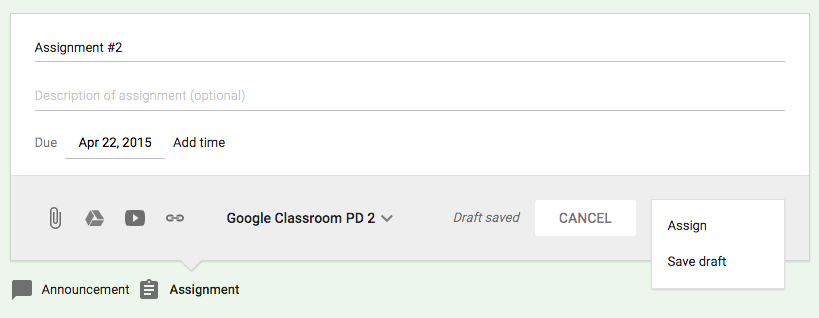
The other new feature is the ability to create announcements and assignments and save them for later.  You can create the assignment without the students seeing it.  Then, when you want them to have the assignment, you make it active.  This is an awesome feature for teachers who like to work ahead, without the students knowing what is coming.


I really give it up to Google for listening to the suggestions teachers have made.  Give Google Classroom a try, it will really help your sharing of documents with your students.

Saturday, April 18, 2015

Suggesting Edits in Google Docs

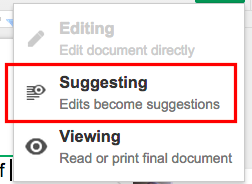
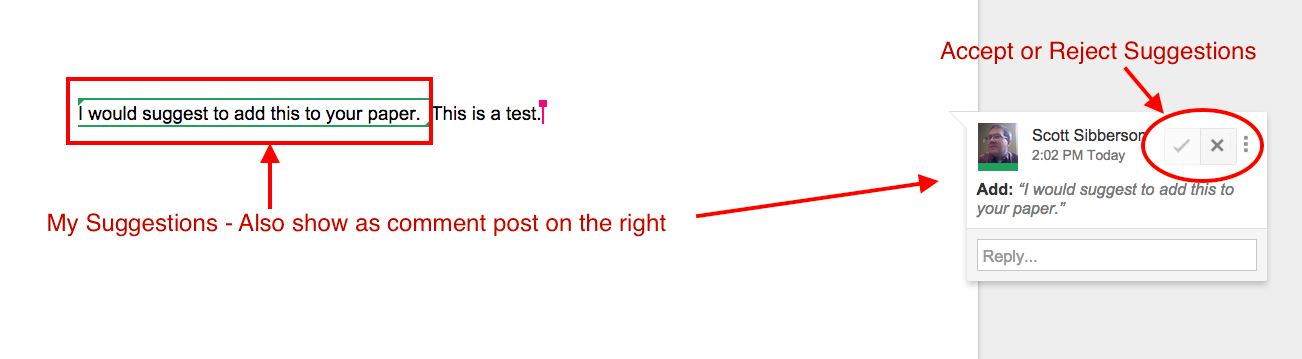
There has been a recent change to the edits you can make to a Google document.  Now, as long as you  have Commenting or Editing permissions, you can "Suggest Edits" to a document.  You start a suggestions by placing your cursor where you want the edit to go.  You select "Suggesting" from the menu on the top right of the document.  You'll see a pencil icon up there.  Then type the suggestion.  It will show up in the document, but not be official until the owner "OKs" the suggestion.

Here are your choices of edits.  Notice, the Editing choice is "grayed" out because the example I chose came from a document that I only had "Commenting" permission.


When you type in your suggestion, it will show up and a "post-it" will show up on the right to show what the suggestion was and where it should go.  The owner then needs to approve or disapprove of the change.  The owner gets an email to notify them of the suggestion.


This is a pretty nice feature.  It makes the suggestions a little nicer than just highlighting and making the suggestion in the "Comment" box.  Next time you are collaborating with someone, give the "Suggesting" option a try.

Tuesday, April 14, 2015

Getting Started with Google Classroom

This year, Google introduced Classroom as a tool for teachers in Google Apps for Education domains.  Classroom has proven to be a very helpful tool to help teachers and students work together and keep their documents organized.  Classroom is built to perform some tasks very well.  It is great at providing teachers a platform to make announcements (and other communications) to their students, distribute and collect assignments from students (with all of the great features of Google Drive), and provide an online collection of digital resources for their students to access at any time.

Google Classroom is a very nice tool for teachers to utilize.  Below is a video of how a teacher would create their Google Classroom, as well as what that classroom looks like as a student.  It will walk you through what you need to know to get started with your students.  Give it a look.


Now that you've seen it in action, you probably want to give it a try.  Go ahead!

Here are some suggestions as to how you might use Google Classroom with your students.

Share Materials - Use the “Announcement” to distribute files, Google Drive files, YouTube videos, and Links to your students. It can also share to any other classes you teach, as well.

Class Discussions - Use the “Announcement” to pose questions for class discussions. Your students will be able to reply to you and each other.

Distribute and Collect files - Use “Assignment” to distribute and collect files to your students in an organized manner. Your folder in Drive will thank you for it. It will also allow for the ownership of the file to pass back and forth with the student.

Shared editing of a file - Give the students access to edit a document with their classmates. The will be able to co-edit and create some great work. They could create a Presentation by sharing a Google Slides presentation, then each student could add a slide.

Go Paperless - Pass out and collect everything right in your classroom.

Google Classroom is a pretty awesome new tool. Google is working to make improvements, as well. I am curious to see where it ends up, but I think teachers will love it.

Friday, March 27, 2015

Draftback for Google Docs using Chrome

Have you ever wanted to analyze the development of your writing?  This Chrome extension - Draftback - will allow you to do it with relative ease.  Draftback allows you to play back your revision history of any Google Doc you can edit.

Download it from here - Click the link

Read more about it here - Click the link

Here is what it looks like when you open it on one of your docs.


Here is what it looks like when it is playing back.


This might be awesome for teachers wanting to analyze the process their students are going through when writing.  Give it a look!

Wednesday, March 25, 2015

Starting a Google Hangout

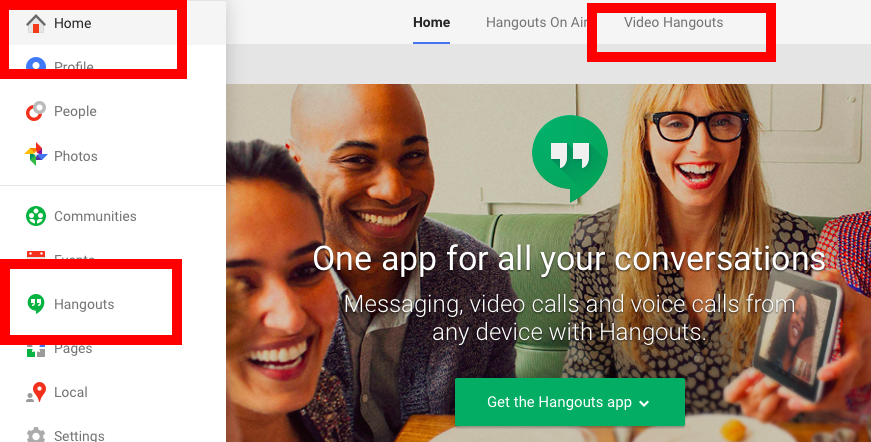
I frequently get asked about how to create a Google Hangout.  Google Hangouts are a great way to video chat with other Google users.  They are free and easy to setup and use.  There are 3 ways to easily start a Google Hangout.

1.  Go into your Google Plus account   "+ You" on any Google Page  
     Find the "Home" menu on the top-left side of the page
     Choose Hangouts
     Select Video Hangout


2.  Go to your GMail page
     Find a contact on the bottom-left corner
     Hover over that contact
     Click the camera button to start Hangout


3.  Go to your Calendar page
     Create a new event
     Include video call
     Invite other users
     The event will contain a link to join video Call.

Here is a video demonstrating all of these methods.


Tuesday, March 3, 2015

Shared with Me is Back

Google has listened to many users that wanted their "Shared with Me" button back in the new Google Drive.  Google changed "Incoming" back to "Shared with Me."  It also added some features that will be demonstrated in the video below.


The changes include-
1.  Being able to click on the object - Incoming would only allow "hovering," when you wanted to work with an item in your "Incoming" folder.

2.  Being able to drag an item directly into a folder that is on your Google "My Drive."

3.  Being able to select multiple items at one time.  You can do this on a mac by holding down the command key.  This used to be an option in the old drive, because you could select with check boxes.  I say, "Welcome Back!" to this feature.

Check out these changes in Google Drive.

Friday, December 12, 2014

RowCall Add-on for Google Sheets

Teachers frequently collect a lot of data with Google Forms.  The data then gets manipulated in a Google Sheet.  I hear a lot of requests for the ability to look at each student's data by itself.  This Add-on, RowCall, will automatically create a tab for each different entry in a column.  This means that each student would have their own tab in the spreadsheet, as well as being part of the whole grouping of data.  Check out the tutorial below.


Saturday, November 22, 2014

Google Docs Comments

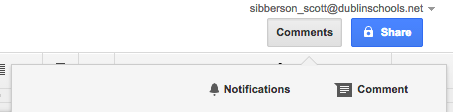
Teachers and students will love their ability to comment on their work and the work of their classmates.  When you have "edit" or "comment" access to a document, you can easily add a comment (like a post-it note) right on the document.  All you have to do is select some text and click the comment button at the top of the page.


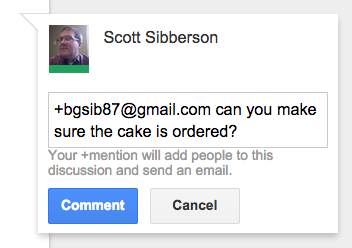
You will be able to type a note to the owner.  Then your comment will show up and an email will be sent to the owner of the document.


The owner will then be able to go into the document and resolve the suggestion.  Also, take notice that you can +emailaddress another person to add them to the conversation.  When you + someone, they will get an email, and you will be prompted to alter the share settings for that person.  You could add them as an editor, commenter, or just allow them to reply to the comment.  Interesting possibilities there.


Comments will be an excellent way for teachers to help students edit their work, without having to edit the work for the student.  Make suggestions, provide hints, or even create a class code for editing tips.  Give comments a try.

Wednesday, November 5, 2014

Google Forms has Customizable Banners and New Banner Choices

Google Forms has been going through some serious upgrades.  I've been posting about them for weeks.  One upgrade I really like is the ability to add your own custom banners to the top of your Google Forms.  I would suggest creating one for all of your Forms.  That way, your students or colleagues will recognize it as yours.  You can even create a little logo to use with it.  Here is one that we created for our future surveys.  It is a graphic that is 500 pixels wide and 150 pixels tall.


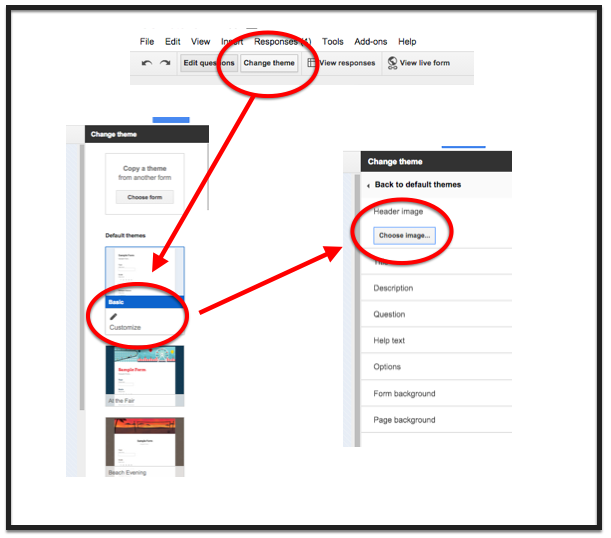
You can add your banner by going into the "Change Theme" button.  Then looking at the theme list and noticing you can now customize themes.  Click "customize".  Then open the "Header Image" area and click "Choose Image".  You can then upload your own banner.


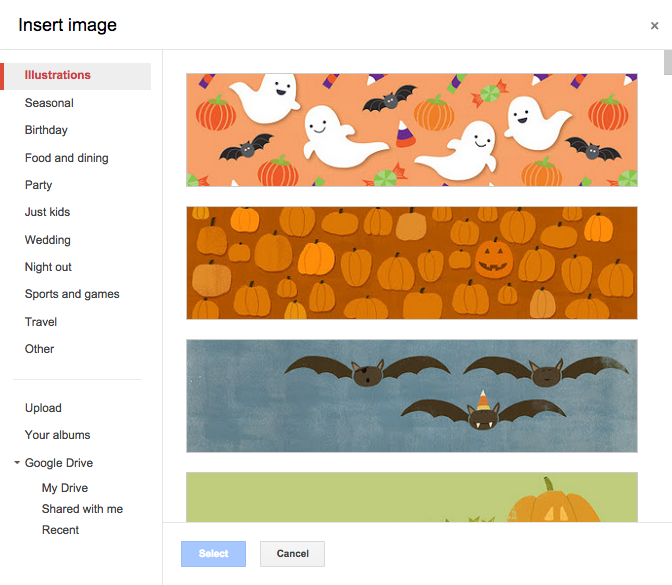
You may also notice that there are a lot of new banner choices that Google has provided.  They are even arranged in topics.  Some cool seasonal ones are available for your Form use.


These upgrades should make data collection fun and interesting.  Give them a try!

Tuesday, November 4, 2014

Office files Converted with New Google Drive

There are times when you may want to upload and convert one of your current Office files so that you can share or work with colleagues on the document.  You can upload and convert Office files directly into Google format so that you can share and collaborate or even publish.  Below is a tutorial on how you can upload those files in the New version of Google Drive.  Here is a link to a version for the Old Google Drive.

Google will upload and convert Word, Excel, and PowerPoint files.


Google will also convert so that you can download files back out of Google into other formats.  That way you can send to people who need a specific format or don't have a Google Account (Boo!)

Give this a try!

Friday, October 24, 2014

New Google Form Add-ons - Choice Eliminator

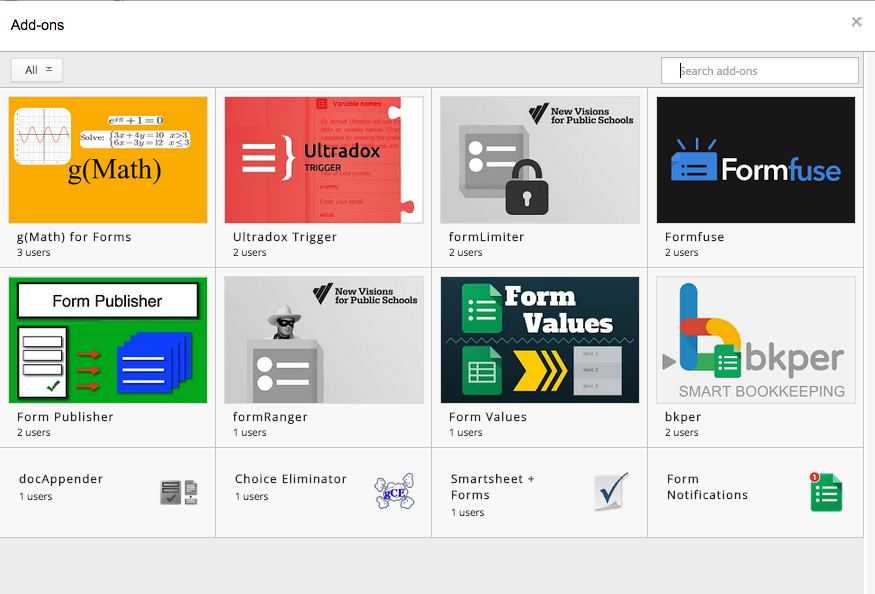
Google recently added "Add-ons" as a feature of Google Forms.  There are some great options to check out.  Here is a picture of what is currently available.  Check them out.

Choice of Google Form Add-ons


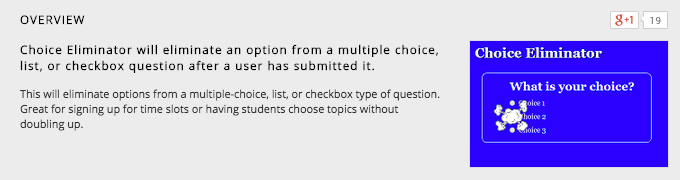
One that I am really happy to see is "Choice Eliminator".  It takes choices out of a list of multiple-choice, checkbox, or list entries.  That way if one submitter selects an option, it is no longer available to people who have not taken the Form yet.  I see this as an outstanding option for people that schedule appointments.  The choices disappear so you don't double-book.  Here is a website with tutorial of how to use Choice Eliminator - click here.


Create your Form.  Go to the Add-ons store in the Add-ons menu and select the Choice Eliminator and try it out.  This will be awesome for teachers scheduling conferences.  Too bad it didn't come out a month ago.