
Showing posts with label collaboration. Show all posts
Showing posts with label collaboration. Show all posts
Saturday, September 24, 2016
Google Docs - Two Column Layout
One of the great things about Google Apps for Education is that new features come around all of the time. It is sometimes difficult to keep up with all of the new features that come out. How about this one? Google Docs now has a multiple-column layout available. You can now layout in two or three columns to create those flyers, newsletters, handouts, etc. that you would have to leave Google to do. Now you can enjoy the power of collaborative work and create those communications with multiple column layouts.


Wednesday, April 22, 2015
Two New Features in Google Classroom
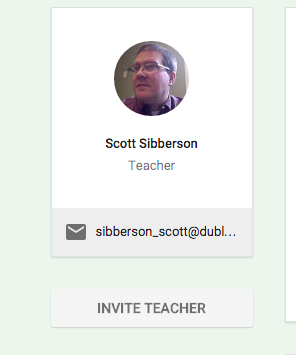
How about Google? They definitely listen to suggestions. They have made two really nice improvements. First, they have added the ability to have multiple teachers in a Google Classroom. See my previous post about getting started with Google Classroom, if you want to get going. Now you can invite another teacher to help out. This is great. That teacher can do everything in the class, except delete the class. The teacher is invited through the "About" section of the course.
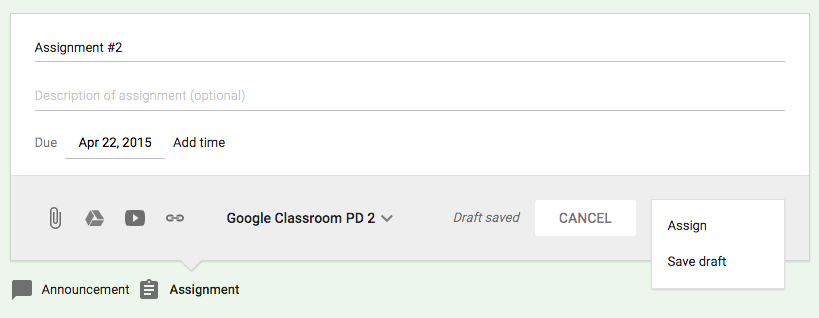
The other new feature is the ability to create announcements and assignments and save them for later. You can create the assignment without the students seeing it. Then, when you want them to have the assignment, you make it active. This is an awesome feature for teachers who like to work ahead, without the students knowing what is coming.
I really give it up to Google for listening to the suggestions teachers have made. Give Google Classroom a try, it will really help your sharing of documents with your students.
The other new feature is the ability to create announcements and assignments and save them for later. You can create the assignment without the students seeing it. Then, when you want them to have the assignment, you make it active. This is an awesome feature for teachers who like to work ahead, without the students knowing what is coming.
I really give it up to Google for listening to the suggestions teachers have made. Give Google Classroom a try, it will really help your sharing of documents with your students.
Saturday, April 18, 2015
Suggesting Edits in Google Docs
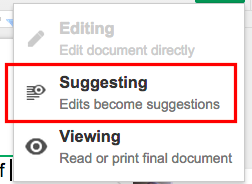
There has been a recent change to the edits you can make to a Google document. Now, as long as you have Commenting or Editing permissions, you can "Suggest Edits" to a document. You start a suggestions by placing your cursor where you want the edit to go. You select "Suggesting" from the menu on the top right of the document. You'll see a pencil icon up there. Then type the suggestion. It will show up in the document, but not be official until the owner "OKs" the suggestion.
Here are your choices of edits. Notice, the Editing choice is "grayed" out because the example I chose came from a document that I only had "Commenting" permission.
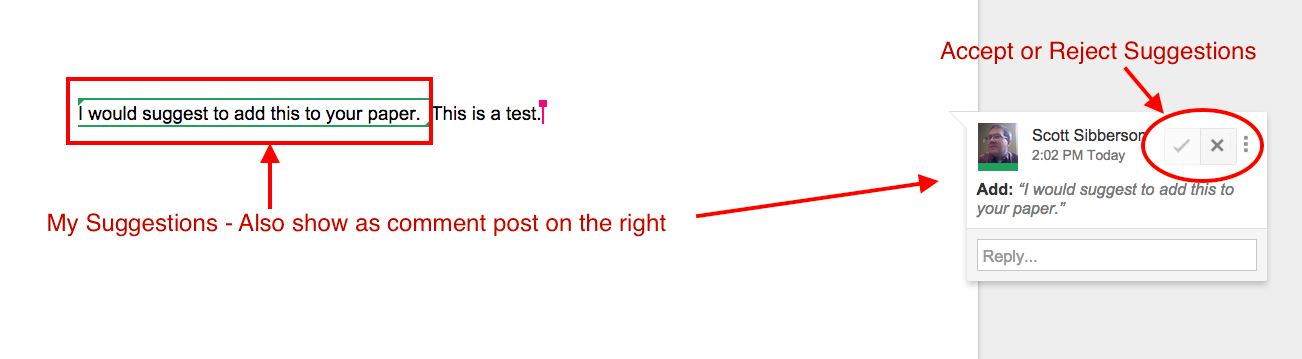
When you type in your suggestion, it will show up and a "post-it" will show up on the right to show what the suggestion was and where it should go. The owner then needs to approve or disapprove of the change. The owner gets an email to notify them of the suggestion.
Here are your choices of edits. Notice, the Editing choice is "grayed" out because the example I chose came from a document that I only had "Commenting" permission.
When you type in your suggestion, it will show up and a "post-it" will show up on the right to show what the suggestion was and where it should go. The owner then needs to approve or disapprove of the change. The owner gets an email to notify them of the suggestion.
This is a pretty nice feature. It makes the suggestions a little nicer than just highlighting and making the suggestion in the "Comment" box. Next time you are collaborating with someone, give the "Suggesting" option a try.
Saturday, November 22, 2014
Google Docs Comments
Teachers and students will love their ability to comment on their work and the work of their classmates. When you have "edit" or "comment" access to a document, you can easily add a comment (like a post-it note) right on the document. All you have to do is select some text and click the comment button at the top of the page.
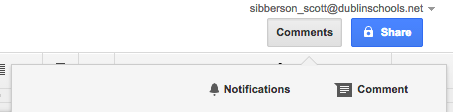
You will be able to type a note to the owner. Then your comment will show up and an email will be sent to the owner of the document.
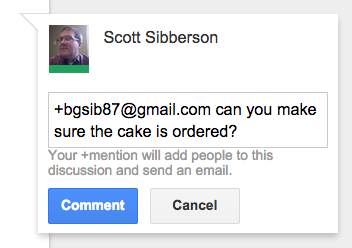
The owner will then be able to go into the document and resolve the suggestion. Also, take notice that you can +emailaddress another person to add them to the conversation. When you + someone, they will get an email, and you will be prompted to alter the share settings for that person. You could add them as an editor, commenter, or just allow them to reply to the comment. Interesting possibilities there.

Comments will be an excellent way for teachers to help students edit their work, without having to edit the work for the student. Make suggestions, provide hints, or even create a class code for editing tips. Give comments a try.
You will be able to type a note to the owner. Then your comment will show up and an email will be sent to the owner of the document.
The owner will then be able to go into the document and resolve the suggestion. Also, take notice that you can +emailaddress another person to add them to the conversation. When you + someone, they will get an email, and you will be prompted to alter the share settings for that person. You could add them as an editor, commenter, or just allow them to reply to the comment. Interesting possibilities there.
Comments will be an excellent way for teachers to help students edit their work, without having to edit the work for the student. Make suggestions, provide hints, or even create a class code for editing tips. Give comments a try.
Thursday, October 9, 2014
Video of New Google Drive Share Window
Here is a video demonstrating and explaining the NEW Google Drive Share window. It explains changes seen here.
Wednesday, October 8, 2014
New Google Share Window
Google has changed it's share window for users. When you click your familiar blue Share button, you'll see something new.

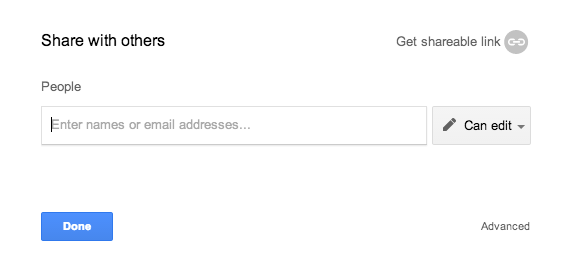
This makes it very easy to share with other people, but there are a few new features you should be aware of. First, if you want to change your visibility settings, click the "Get sharable link" at the top-right corner of the window (see below). This will allow you to change the Global access settings of your document.
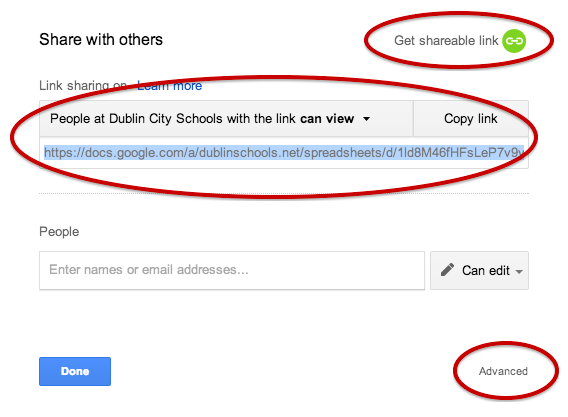
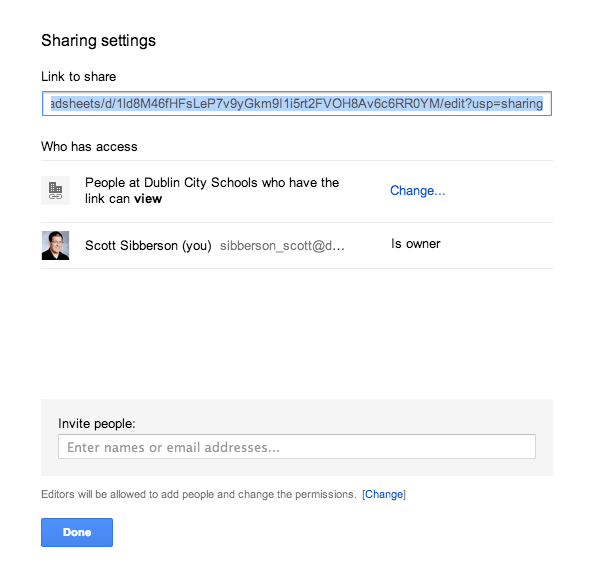
If you want to see the old format of sharing with People, click the Advanced link in the bottom-right corner of the page (see above). It will open the page to the more traditional sharing window.
I think this streamlined share window will become very easy to use. As with most Google changes, it is different and will take some getting used to. I hope I get used to it quickly.
This makes it very easy to share with other people, but there are a few new features you should be aware of. First, if you want to change your visibility settings, click the "Get sharable link" at the top-right corner of the window (see below). This will allow you to change the Global access settings of your document.
If you want to see the old format of sharing with People, click the Advanced link in the bottom-right corner of the page (see above). It will open the page to the more traditional sharing window.
I think this streamlined share window will become very easy to use. As with most Google changes, it is different and will take some getting used to. I hope I get used to it quickly.
Saturday, August 11, 2012
WeVideo
WeVideo is an online video editing program. It allows users to do their editing online, without having to own a video editing software. It also allows multiple users to edit the same file. It is used in a browser, so it is not necessary for all editors to have the same type of computer or software.

WeVideo allows for many different types of videos to be uploaded for editing. It also works well with wireless uploads. Google Drive integrates well with storage. You can bring in music and effects, or use what is there. When you are finished, you can share your project to many social media sites.

So, if you have a few people working on a video project, create it in WeVideo and invite your co-workers to help. It seems like a great option for creating, editing, and sharing video projects.

WeVideo allows for many different types of videos to be uploaded for editing. It also works well with wireless uploads. Google Drive integrates well with storage. You can bring in music and effects, or use what is there. When you are finished, you can share your project to many social media sites.

So, if you have a few people working on a video project, create it in WeVideo and invite your co-workers to help. It seems like a great option for creating, editing, and sharing video projects.
Subscribe to:
Posts (Atom)