Thursday, October 2, 2014

Generic Google Forms

Teachers are always looking for a way to determine if students are understanding the material. Whether it's group work or direct instruction.

 Here is a good, quick way to use Google Forms to assess the "temperature" of the understanding. I would suggest creating some generic Google Forms. You can save them and use them frequently, by clearing out the response data and using them over and over. Below, I have shared two generic Google Forms that I use to assess my audiences.


I have used these forms to gather information, either in multiple-choice format or short-answer text format.  I have used a bit.ly shortener and QR Code to make the Forms accessible to the students.  They can use any device to submit responses - no need for those expensive clickers.  The actual questions live on the presentation of the day or written on the board in the room.

I also included an options identifier box, so if I needed to survey them more than once, they could include the identifier.  They could use a 1 for the first question, 2 for the second, and so on, so the data could be sorted or filtered.   It could also be used for the student's name, if results were to be retained.  I could then filter my data in the spreadsheet for the results of the survey.

One of the best features of Google Forms is that the graphs of the data are available immediately.  You can stop and analyze it right away.  Having a link to that spreadsheet ready, will make data analysis easy, quick, and very informative.

Create yourself a couple generic Google Forms and gather some quick information from your students.


Wednesday, August 6, 2014

Google Classroom is Coming Soon

Got a letter from Google today stating that Google Classroom is going live the week of August 11th.  I can't wait to see what teachers can do with it.

Below are some preliminary finding about Google Classroom.


Saturday, June 21, 2014

My Google Classroom Thoughts

Over the last couple of days, I've been fortunate to be able to test drive the future release of Google Classroom.  You've seen some advertisements - click here - and you've seen some video reviews - click here.  I thought I would share my initial thought with you.

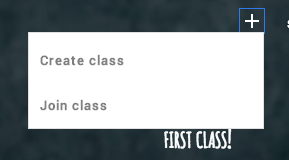
Google Classroom seems to be very intuitive in it's design and ease of navigation.  It is very easy for a teacher to create a class.  One suggestion I would have is that the teacher name each course uniquely.  If you teach multiple sections of Algebra II, you might consider combining all sections into one course or naming your courses Alg II-1, Alg II-2, and so on.  The section number you place in the name of the course does not get used in the folder creation, just the name.  Here is a picture of how easy it is for teachers or students to add a course.  When a teacher creates a course, it is assigned a course number so students can join using the course number.

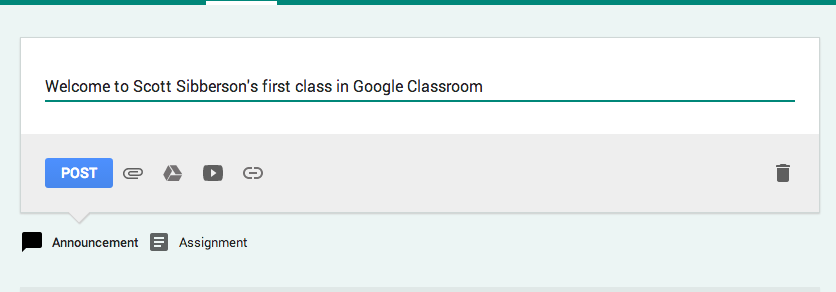
Once the students are in the course the teacher has the task of posting announcements or assignments.  This has been made quite easy.  The teacher click a selections, adds the information, and posts.  The teacher can attach files, add materials from their own Google Drive, add videos from YouTube, or add links to other websites.  See below.


When an assignment is created, Google creates a folder in the teacher's drive (an in the student) for each assignment.  The teacher's drive has a new classroom folder and inside it, a new folder for each class, and inside it, a folder for each assignment.  This helps with the organization of the teacher's documents being turned in and distributed.  Google names the folders with the course name, so pay attention to what the name of you course is - name wisely.

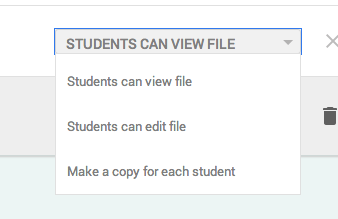
As assignments are created, the teacher will have choices as to how to give visibility of the materials. If the teacher wants each student to have their own, they can distribute copies to each student, or they can make things viewable or editable.  Google is great about ease of choice.  It is a pull-down menu right where the materials are chosen.


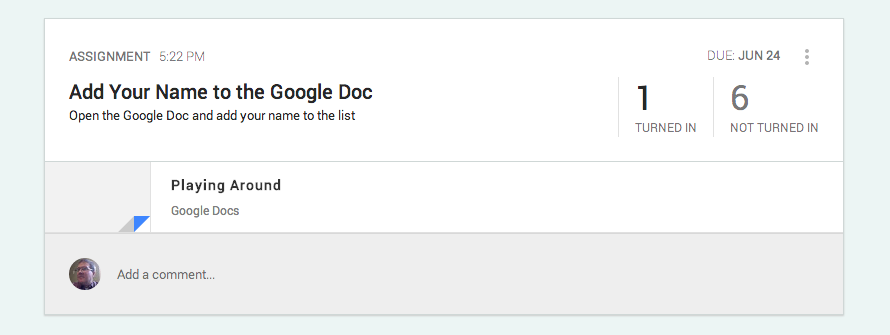
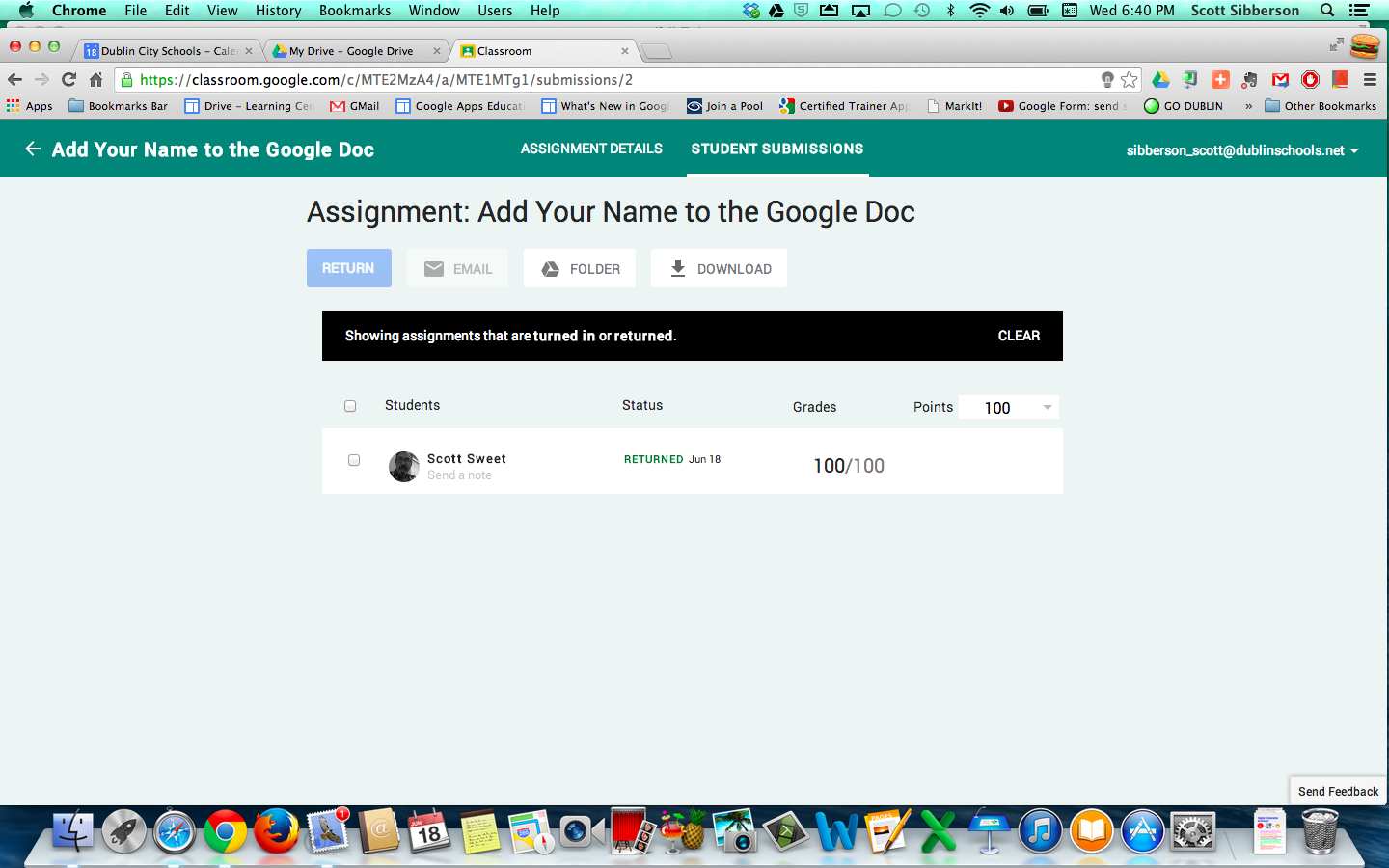
When the students do their work, they can easily submit to the teacher.  The teacher then has a an update on their class timeline, with how many have completed and how many have not, as well as, having a sheet with a list of students and their status.  This is where the teacher can add grades, comments, and email the students directly from a class roster.


There are a couple of features I'd like to see, but for organization and distribution, Google Classroom seems to be a good starting place for Google.  It is not a full LMS, it is just an straightforward way for teachers to work with students.  It is not a grade book, your grades must be moved to your current grading program.  My guess is that Google will add features and this project will grow into quite a nice, easy, and functional way for teachers to utilize Google in the classroom.  

I can't wait for this to come out in the fall.  I think teachers will find it quite useful.


Thursday, May 15, 2014

Formative Assessment and Google Forms

Recently, I attended ITIP Ohio Google Summit in Sandusky, Ohio.  It was a conference of over 700 teachers and administrators from all over the state, and beyond.  It was a two-day conference focusing on Google Apps for Education and how it can be utilized in schools.

I was fortunate enough to be able to share on the topic of formative assessment and how Google Forms can be used to collect, analyze, and share the information with staff and students.  It's always fun to share how powerful Google Forms are for teachers.  Here is my presentation.


Wednesday, May 14, 2014

ITIP Ohio Summit Roundup

ITIP Ohio Summit took place this past Monday and Tuesday, in Sandusky, Ohio at the Kalahari Resort and Convention Center.  The focus of the Summit was Google Apps for Education.  Many sessions were given over the two days.  The Conference was hashtagged at #ITIP14, if you'd like to go see what was said.  The programs are here.

Day 1 - Pre-Conference
Day 2 - Conference

Sessions I attended were:

The Chrome-an Empire: In the 21st Century


Dusty Miller, of WGTE Public Media, presented on the development of Chrome.  She talked about the features and benefits of Chrome.  She mentioned some great Chrome Apps and Extensions.  She also talked about some of the benefits of using Chrome with Google Drive.

Her presentation materials are here - http://tinyurl.com/l243p47

Google SLAM

Many presenters talked about cool apps:
Boomerang for GMail in Chrome - Bill Mooney - so you can schedule emails
Field Trip App for iOS and Android - Dusty Miller - adds Google Info to your current location
PearDeck - John Sowash - An interactive presentation app - "keep you audience engaged"
NearPod - Marcia Kish - An interactive presentation app - "keep you audience engaged"
Jam for Chrome - Marcia Kish - App to create music in Chrome
Chromie is Your Homie - Ryan MacRaild - cool features of Chrome - http://goo.gl/I6drnF
Calendar - Labs - Mary Ann Falk - Explored some different labs in Google Calendar
Anticipated Preview of Google Classroom - Carrie Rathsackhttp://www.google.com/edu/classroom/
Google Sheets - Anthony Luscre - Conditional spreadsheet applications

Google Apps: It's Elementary!

Shahnyn Moody-Benedict and Angela Maxwell presented on how they use Google Apps for Education in the elementary school.  They are media specialists and work with staff and students to use Google Apps to accomplish many tasks.

Their presentation is linked here - Google Apps: It's Elementary! Presentation and Survey


50+ Uses of Google Forms & How to Create Them


Lisa Johnson-Bowers and Darlene Adamson, from Mentor, presented on many ways to use Google Forms.  They provided a lot of examples of how you could use forms and even demonstrated how to create a form.  One big feature I liked was the demonstration of how to create a "conditional" survey.

Their presentation is linked here - http://goo.gl/A7VpHj


Making GMail Safe for Schools


Eric Curts, Tech Integration Specialist for SPARCC, presented how Admins can write scripts and rules to allow mail to flow in and out of your organization.  He shared many features to help be specific about which members can send and receive email from different groups.

His presentation materials are here - http://www.appsusergroup.org/presentations/email-security

These two days have been outstanding.

If you are a GAFE user, you should make a point to attend next year.


Tuesday, May 6, 2014

Shorten Your URLs with "goo.gl"

Have you ever needed to shorten an extra-long URL?  I do all the time.  Now that I am using Google Forms frequently, I am always needing to shorten them.  I have tried many and there are some benefits to others, but I have started to use "goo.gl" as my go-to shortener.

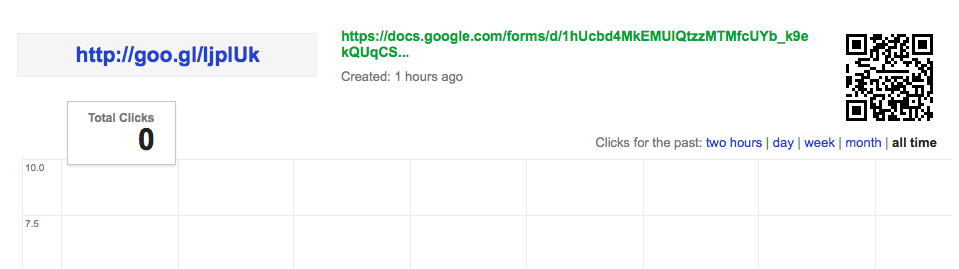
I love the fact that is keeps track of all of the URLs that I shorten.  I also love the fact that it quickly, and automatically, creates a QR Code.  Goo.gl makes it very easy for me to create a form, shorten the URL, and collect data from people.  Here is a screen shot of the details for a recently shortened address.


Here is a quick tutorial, demonstrating how "goo.gl" easily shortens the address and provides your information.  Check it out and give it a try.


Sunday, April 20, 2014

HAPPY BIRTHDAY, FRANKI!

Just wanted to say "Happy Birthday" to the most wonderful person I know. Just wanted to acknowledge that this blog wouldn't exist if not for Franki. Thanks for the "pushing and prodding" to make me do it.

 My thoughts wouldn't be here - If Not For Franki!

 Happy Birthday!


 Scott