Friday, March 27, 2015

Draftback for Google Docs using Chrome

Have you ever wanted to analyze the development of your writing?  This Chrome extension - Draftback - will allow you to do it with relative ease.  Draftback allows you to play back your revision history of any Google Doc you can edit.

Download it from here - Click the link

Read more about it here - Click the link

Here is what it looks like when you open it on one of your docs.


Here is what it looks like when it is playing back.


This might be awesome for teachers wanting to analyze the process their students are going through when writing.  Give it a look!

Wednesday, March 25, 2015

Starting a Google Hangout

I frequently get asked about how to create a Google Hangout.  Google Hangouts are a great way to video chat with other Google users.  They are free and easy to setup and use.  There are 3 ways to easily start a Google Hangout.

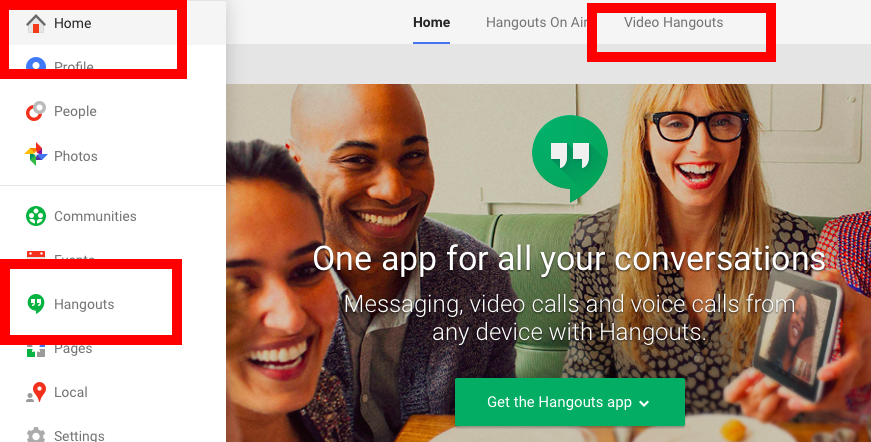
1.  Go into your Google Plus account   "+ You" on any Google Page  
     Find the "Home" menu on the top-left side of the page
     Choose Hangouts
     Select Video Hangout


2.  Go to your GMail page
     Find a contact on the bottom-left corner
     Hover over that contact
     Click the camera button to start Hangout


3.  Go to your Calendar page
     Create a new event
     Include video call
     Invite other users
     The event will contain a link to join video Call.

Here is a video demonstrating all of these methods.


Tuesday, March 3, 2015

Shared with Me is Back

Google has listened to many users that wanted their "Shared with Me" button back in the new Google Drive.  Google changed "Incoming" back to "Shared with Me."  It also added some features that will be demonstrated in the video below.


The changes include-
1.  Being able to click on the object - Incoming would only allow "hovering," when you wanted to work with an item in your "Incoming" folder.

2.  Being able to drag an item directly into a folder that is on your Google "My Drive."

3.  Being able to select multiple items at one time.  You can do this on a mac by holding down the command key.  This used to be an option in the old drive, because you could select with check boxes.  I say, "Welcome Back!" to this feature.

Check out these changes in Google Drive.

Friday, December 12, 2014

RowCall Add-on for Google Sheets

Teachers frequently collect a lot of data with Google Forms.  The data then gets manipulated in a Google Sheet.  I hear a lot of requests for the ability to look at each student's data by itself.  This Add-on, RowCall, will automatically create a tab for each different entry in a column.  This means that each student would have their own tab in the spreadsheet, as well as being part of the whole grouping of data.  Check out the tutorial below.


Wednesday, December 10, 2014

Sort and Filter Google Sheets

Many times there is a need to organize your data in a spreadsheet.  Here is a video that demonstrates how to sort Google Sheet data and also how to filter it.  It makes using your data much more informative.


Saturday, November 22, 2014

Google Docs Comments

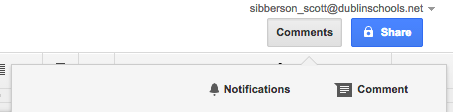
Teachers and students will love their ability to comment on their work and the work of their classmates.  When you have "edit" or "comment" access to a document, you can easily add a comment (like a post-it note) right on the document.  All you have to do is select some text and click the comment button at the top of the page.


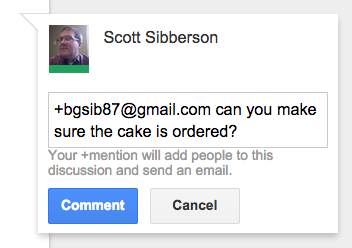
You will be able to type a note to the owner.  Then your comment will show up and an email will be sent to the owner of the document.


The owner will then be able to go into the document and resolve the suggestion.  Also, take notice that you can +emailaddress another person to add them to the conversation.  When you + someone, they will get an email, and you will be prompted to alter the share settings for that person.  You could add them as an editor, commenter, or just allow them to reply to the comment.  Interesting possibilities there.


Comments will be an excellent way for teachers to help students edit their work, without having to edit the work for the student.  Make suggestions, provide hints, or even create a class code for editing tips.  Give comments a try.

Wednesday, November 5, 2014

Google Forms has Customizable Banners and New Banner Choices

Google Forms has been going through some serious upgrades.  I've been posting about them for weeks.  One upgrade I really like is the ability to add your own custom banners to the top of your Google Forms.  I would suggest creating one for all of your Forms.  That way, your students or colleagues will recognize it as yours.  You can even create a little logo to use with it.  Here is one that we created for our future surveys.  It is a graphic that is 500 pixels wide and 150 pixels tall.


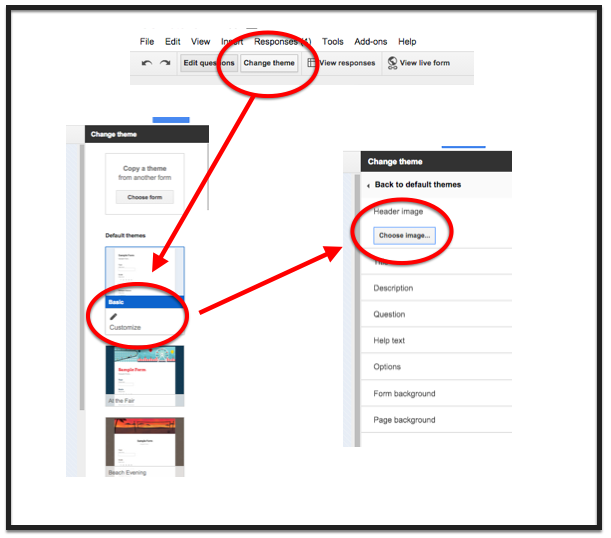
You can add your banner by going into the "Change Theme" button.  Then looking at the theme list and noticing you can now customize themes.  Click "customize".  Then open the "Header Image" area and click "Choose Image".  You can then upload your own banner.


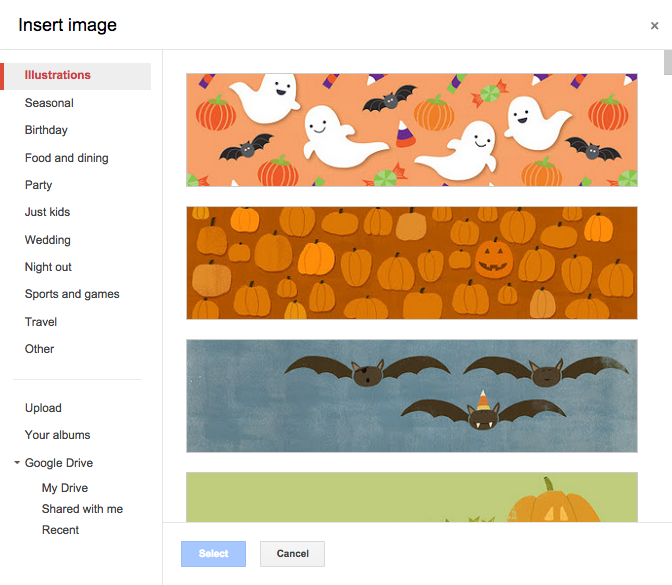
You may also notice that there are a lot of new banner choices that Google has provided.  They are even arranged in topics.  Some cool seasonal ones are available for your Form use.


These upgrades should make data collection fun and interesting.  Give them a try!