This past year, I heard a lot about flipping a classroom. We had some teachers in our school who were flipping their instruction. It has become a fairly common practice from what I am seeing. What is flipping? Having the students receive instruction at home, via podcast or screencast, and then spending class time working, with teacher support, on problems and applications regarding the instruction. At BLC11 this past week, I was lucky to see some of very good presentations that involved flipping instruction. The presentations mentioned a couple of great points to why you would flip instruction as well as what you need to do to make that happen.
First off, I would like to thank the speakers that I saw - Jon Bergmann and Aaron Sams (from Colorado) and Garth Holman and Mike Pennington (from Ohio). These guys have worked together in their preparation of lessons to share with students. I am finding that the effectiveness of this type of instruction can be greatly influenced by two people providing the instruction by asking questions and explaining the concepts. Bergmann and Sams have a ning that they share some of their information - Flipped Class. Holman and Pennington have just started using flipped instruction and are planning on doing more of it this year. They have a website called TeachersForTomorrow.Net. The feedback they received from students was outstanding.
There are many reasons why flipped instruction can be very successful. First off, the students can work through applications and problems with the teacher in the room for support. The teacher takes on more of a "coach" role, as the students work together to solve problems that would have been difficult to solve on their own at home. Flipping also allows the students to view the instruction at their own pace. They can pause videos, rewind to see again, and watch multiple times, if necessary. And another good reason is that when a student is absent, their instruction is available at a later date. These reasons make the idea of flipping the instruction quite helpful.
What do the teachers have to do to flip instruction? Many teachers record their teaching with video. They can record with their SmartBoards, or set up a video camera in their classroom and record their instruction. Some use tablet computers to record their voice and writing, then create a video with editing software. This process is called screencasting. Others use webcams and create interview shows with other teachers, recording their explanations of concepts with their computers. There are many ways to record your instruction so that it can be shared with your students.
My hope is that as more and more people will flip their instruction, then more and more lessons will get shared. There are many awesome teachers that have excellent ways to teach concepts and that students could benefit greatly from being able to see those recordings. Give flipping a try. Record your instruction, let the kids see it ahead of time, and enjoy the time working with kids on new problems that they can solve and work through with you in the room with them.
Monday, August 1, 2011


Saturday, July 30, 2011
Connecting with Good People
Below are some people you might want to follow on Twitter. I had the opportunity to see and hear these people talk at BLC11 in Boston. They spoke on various topics regarding education and technology. They are:
Garth Holman - @garthholman - online textbook and collaborating from a distance - blog
Mike Pennington - @professormike1 - online textbook and collaborating from a distance - blog
Jon Bergmann - @jonbergmann - flipped classrooms - ning
Aaron Sams - @chemicalsams - flipped classrooms- ning
Chris Bell - @cbell619 - google docs for collaboration - web info
Marco Torres - @torres21 - using technology to engage students - web info
Jeff Utecht - @jutecht - using QR codes in schools - blog
Angela Maiers - @angelamaiers - social networking and web 3.0 - web info
Rob Evans - dealing with change in schools - web info
Kathy Cassidy - @kathycassidy - digital portfolios - blog
Seth Bowers - @sethbowers - student tools for collaboration - blog
If you get a chance, read the material these people write about or see them in the future. They have good insights into helping students succeed. Their ideas are good and materials are helpful.
Garth Holman - @garthholman - online textbook and collaborating from a distance - blog
Mike Pennington - @professormike1 - online textbook and collaborating from a distance - blog
Jon Bergmann - @jonbergmann - flipped classrooms - ning
Aaron Sams - @chemicalsams - flipped classrooms- ning
Chris Bell - @cbell619 - google docs for collaboration - web info
Marco Torres - @torres21 - using technology to engage students - web info
Jeff Utecht - @jutecht - using QR codes in schools - blog
Angela Maiers - @angelamaiers - social networking and web 3.0 - web info
Rob Evans - dealing with change in schools - web info
Kathy Cassidy - @kathycassidy - digital portfolios - blog
Seth Bowers - @sethbowers - student tools for collaboration - blog
If you get a chance, read the material these people write about or see them in the future. They have good insights into helping students succeed. Their ideas are good and materials are helpful.
Friday, July 29, 2011
Screen Chomp

Screen Chomp is a new piece of free software that is out for the iPad. TechSmith Corp has developed this software to help make it very easy to capture work off of an iPad. You can record writing and audio to create videos of your work, creating a screencast of what was happening. Screencasting is an outstanding way to create tutorials for sharing what you learn and know.
Using Screen Chomp, you have the ability to change text color, display photos that are on your iPad, and easily save the video. It also has the ability to send directly to Facebook. It is a new piece of software and the developers are looking for feedback. Students have found this software easy to use to demonstrate what they know - allowing them to share with other students.
Monday, July 18, 2011
ShowMe App

A few of our teachers at school are going to use iPads in class. They are going to use the iPads to control their LCD projectors and whiteboards. I will write about that process as it unfolds, but today I want to share with you an app that I just found and have been playing with. It is the the app called ShowMe. It is an app that allows the iPad user to write on the iPad and record what is written, as well as any audio that you provide while working.

On the left-hand side of the page, you can see that you have a pencil tool, an erase tool, a clear-screen tool, and a picture insertion tool. You can choose pencil colors. And at the bottom of the page is a record button, so you can record what is written on the page. It also records the audio so you can describe what is taking place. This is outstanding for recording tutorial work. It would also be an excellent way for students to demonstrate their understanding. They can do the work and explain as they go. You can save the recording for sharing later with other students.

Once you record your video, you can upload it to ShowMe's website. You will be given the choice of making it public or private. If private, you'll be able to share it with a link. If public, anyone on the ShowMe website would be able to search and find it.

You can title the video, provide a description, and also keyword tag it for future reference.

As you can see here, you can share it on facebook, twitter, or email. I think that this application may prove helpful and easy-to-use for teachers to create tutorials for their students. Give it a try.
Saturday, June 11, 2011
Building a Master Schedule
We just finished building our master schedule. It is quite a process, and one that if completed conscientiously, can make a big difference as to how many students can really get the classes they want and need. Usually, this process is done with a month or so of school to go, so that schedule conflicts can be worked out. This year, due to budget issues - which led to staffing issues, we were put on hold. We have never built a schedule this late.
We use a process that was developed by Pearson. They run workshops to train school administration and support groups how to build schedules so that a maximum number of students can schedule with no conflicts. We have 1200 or so students, so conflicts will be an issue, especially when you offer IB and AP courses. It is a fun "puzzle" to put together. We use scheduling boards and scheduling chips to help with the process. You can see them below.
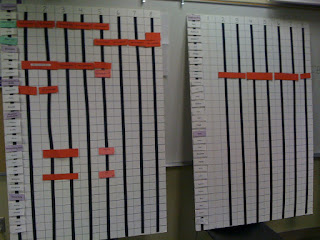
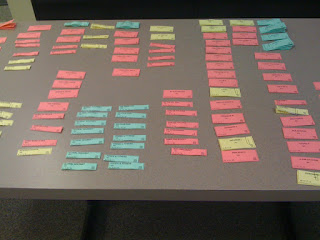
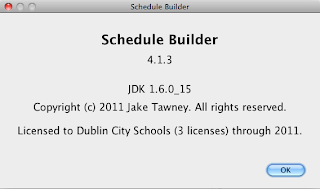
For the past couple of years, we have been fortunate enough to use a computer program to help us with this process. A teacher from a neighboring school district developed his Schedule Builder program, and it has cut more than a day's worth of time off the process. I would like to say thanks to Jake Tawney. If you would like to see his product, contact him. It is really easy to use and saves a lot of tedious work. Thanks, Jake. This program is worth every penny.
I am glad that I am part of the process. It is a challenge that really adds to the school year, but people don't realize what goes on. If you get a chance to work with your administrative team on building a master schedule, you should try it. Our team consisted of principals, guidance staff, special education staff, science department members (room issues abound in the science department), IB coordinator, and others.
We use a process that was developed by Pearson. They run workshops to train school administration and support groups how to build schedules so that a maximum number of students can schedule with no conflicts. We have 1200 or so students, so conflicts will be an issue, especially when you offer IB and AP courses. It is a fun "puzzle" to put together. We use scheduling boards and scheduling chips to help with the process. You can see them below.


I am glad that I am part of the process. It is a challenge that really adds to the school year, but people don't realize what goes on. If you get a chance to work with your administrative team on building a master schedule, you should try it. Our team consisted of principals, guidance staff, special education staff, science department members (room issues abound in the science department), IB coordinator, and others.
Tuesday, June 7, 2011
Dublin Tech Camp 2011
Almost 100 teachers gave up two days of summer vacation to come to Tech Camp 2011. My technology colleagues and I had the opportunity to work with teachers on various topics and activities. The morning was filled with presentations, and the afternoon provided time for teachers to work together in small groups on different projects of their own interest. I was privileged to be able to present on two great topics.
I worked with Beth Politz and Joanna Doyle to present on Synchronous Communications - Skype, iChat, and Elluminate. All 3 are available for teachers to use from school. We showed teachers how these programs worked and gave them ideas of how each could be used with their students.
The other sessions I presented were on Web 2.0 Tools for Teachers. I got to present this twice, and both times the turnout was wonderful. Teachers were eager to hear about Twitter, Google Apps, Blogger, Flickr, Shelfari, and other free online applications. I have posted this presentation here - http://scottsibberson.blogspot.com/p/presentation.html. You can view the presentation here, as well as other resources that were used.
Thanks to all teachers that showed the interest to attend. Keep working and "playing". It doesn't come easy.
Sunday, June 5, 2011
iChromy
Where have I been for months? What a busy spring! Plus, I've been playing with a new iPad. We'll save that post for a later date. WOW - it may be a game-changer. But let's get back to today's topic - iChromy. iChromy is available at the iTunes Store.

iChromy is a web browser application created by Diigo for the iPad. It's free and easy to use and there are a couple of features that are outstanding.
First, the ability to forward a webpage to your others accounts is quite easy to setup and easy to execute. iChromy will attach to your Twitter, Facebook, Diigo, Google Reader, and more. It will also allow your to sent the URL via e-mail to others. I find this very helpful as I am gathering resources to share with other people. To have all of my account just one click away is extremely helpful.
The other feature that I find helpful, is the feature of saving a website for later reading - offline. There is a "glasses" button that allows you to save a website. You can then access the information from that website at a later time, even if you are not connected to the web. This is quite helpful if you are going to be in a car or on a plane, where internet access is limited. You can load up some of those articles you want to read for a later time, then just delete them when you are done.
I would recommend that you try iChromy. You will find it easy to use and quite a nice time saver.
iChromy is a web browser application created by Diigo for the iPad. It's free and easy to use and there are a couple of features that are outstanding.
First, the ability to forward a webpage to your others accounts is quite easy to setup and easy to execute. iChromy will attach to your Twitter, Facebook, Diigo, Google Reader, and more. It will also allow your to sent the URL via e-mail to others. I find this very helpful as I am gathering resources to share with other people. To have all of my account just one click away is extremely helpful.
The other feature that I find helpful, is the feature of saving a website for later reading - offline. There is a "glasses" button that allows you to save a website. You can then access the information from that website at a later time, even if you are not connected to the web. This is quite helpful if you are going to be in a car or on a plane, where internet access is limited. You can load up some of those articles you want to read for a later time, then just delete them when you are done.
I would recommend that you try iChromy. You will find it easy to use and quite a nice time saver.
Subscribe to:
Posts (Atom)